
Getting started
Get familiar with the V-Ray for Rhino UI and main functionalities, and learn the best render settings to start visualizing your project.



.jpg?1661511860)
To get started you'll need to download and install the V-Ray plugin for Rhino. It's important to confirm that your system meets the recommended system requirements before proceeding with the installation.
Start with this beginner-level video tutorial series to get familiar with the software and master the fundamentals of creating photorealistic Rhino renders.
Get familiar with the V-Ray for Rhino UI and main functionalities, and learn the best render settings to start visualizing your project.
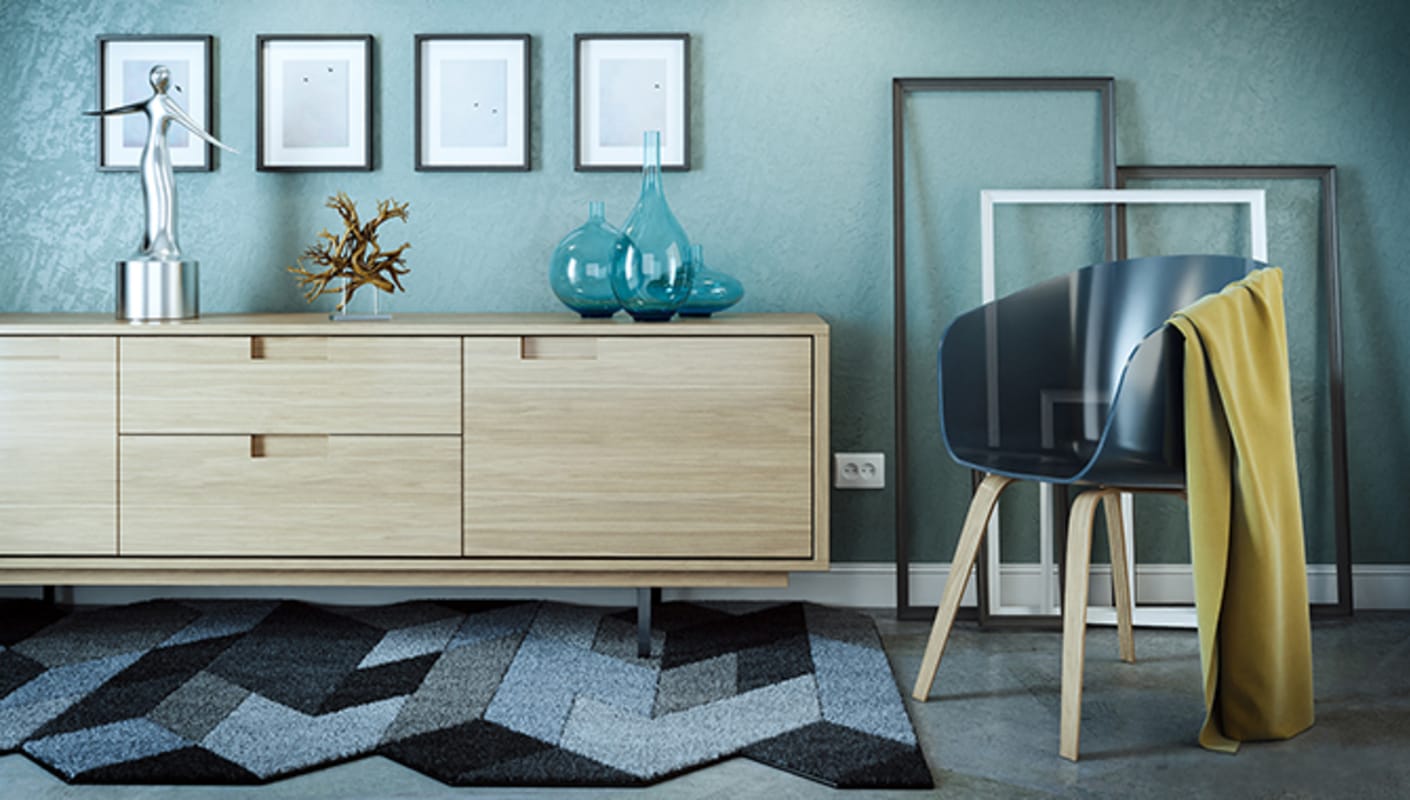
Learn the two ways to apply V-Ray materials to your Rhino project. Build any desired material from scratch or save time by adding ready-to-render materials from Chaos Cosmos.
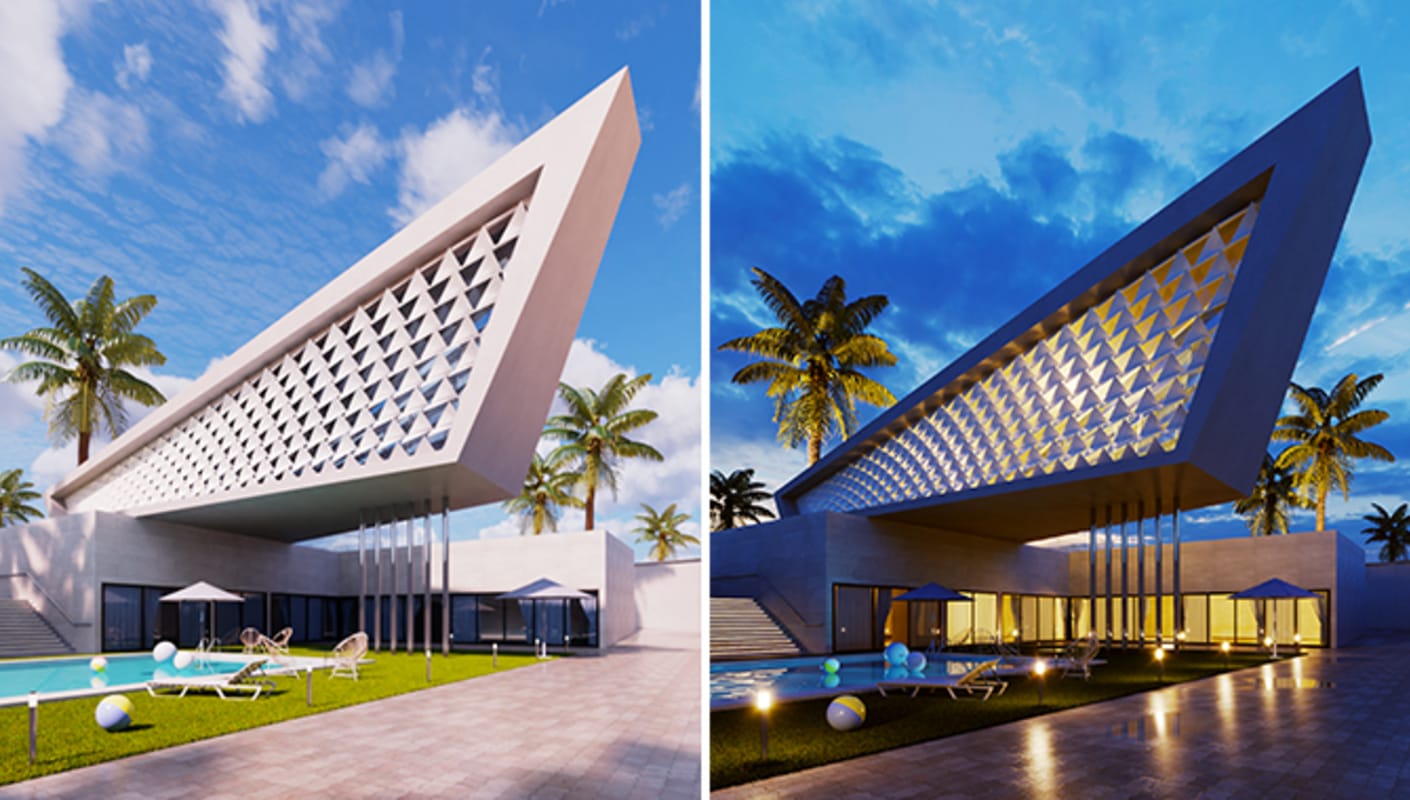
Learn how to set environment lighting, add artificial lights and fine-tune your scene in post with V-Ray for Rhino.
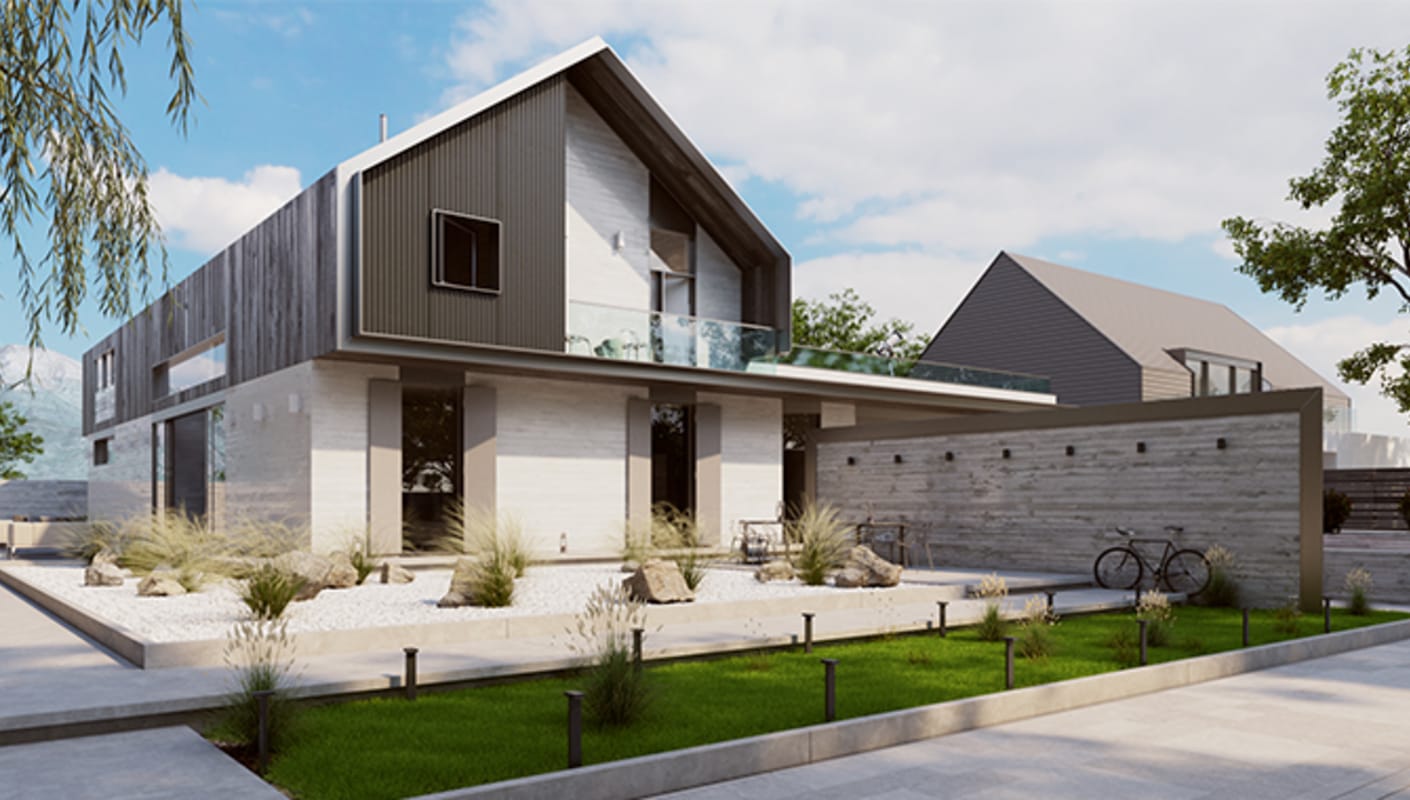
Watch to see how to get your projects ready before rendering and optimize them for your needs. Learn the difference between progressive and bucket rendering, how to enhance the render quality or resolution and how to render on Chaos Cloud.

Watch to learn how to work with multiple camera settings to improve the realism of your renders. Work like a photographer, with controls for exposure, white balance, depth of field, and various lens effects.
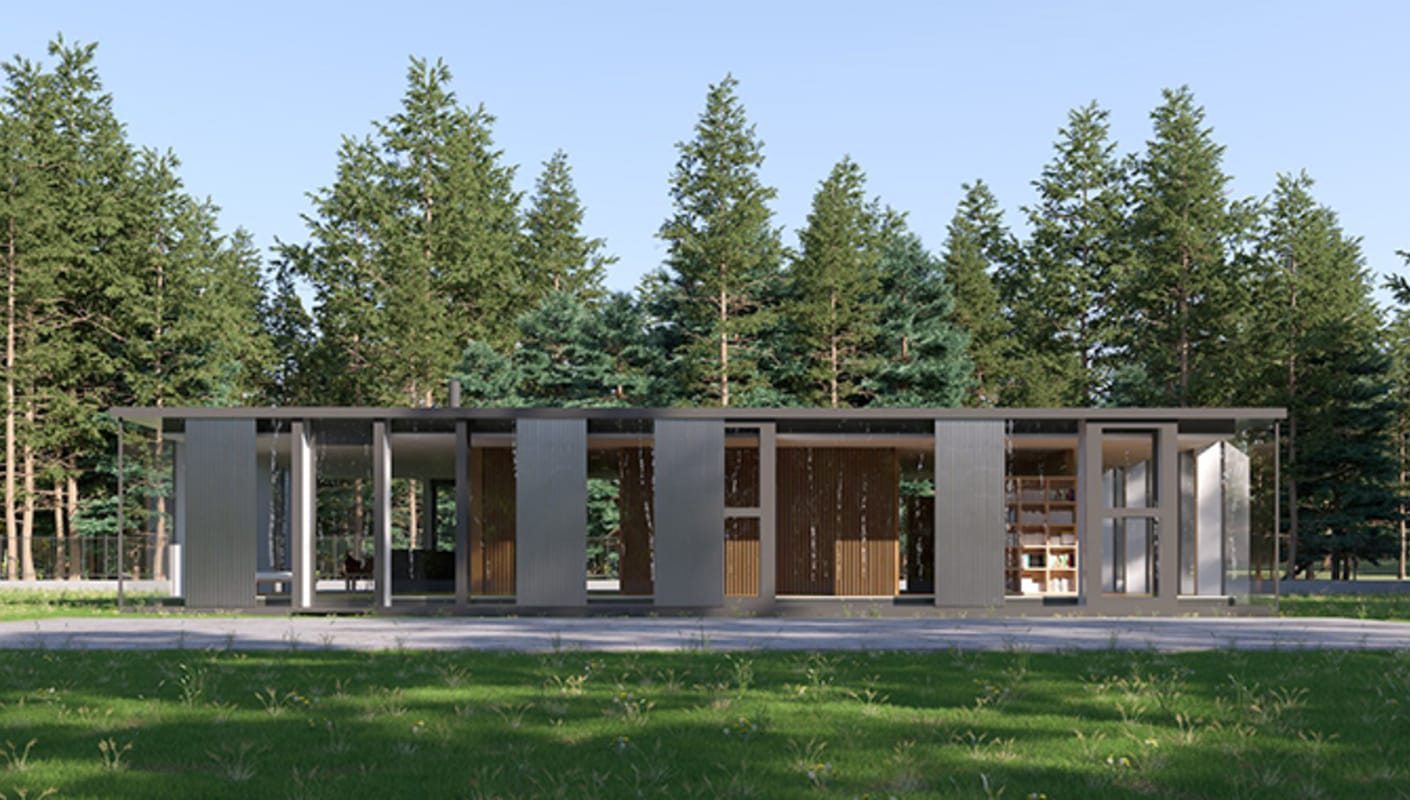
Watch and learn all about the animation options in V-Ray for Rhino. You will see how to animate geometry and set camera animations, denoising and previewing your work, as well as all the render settings for animations.
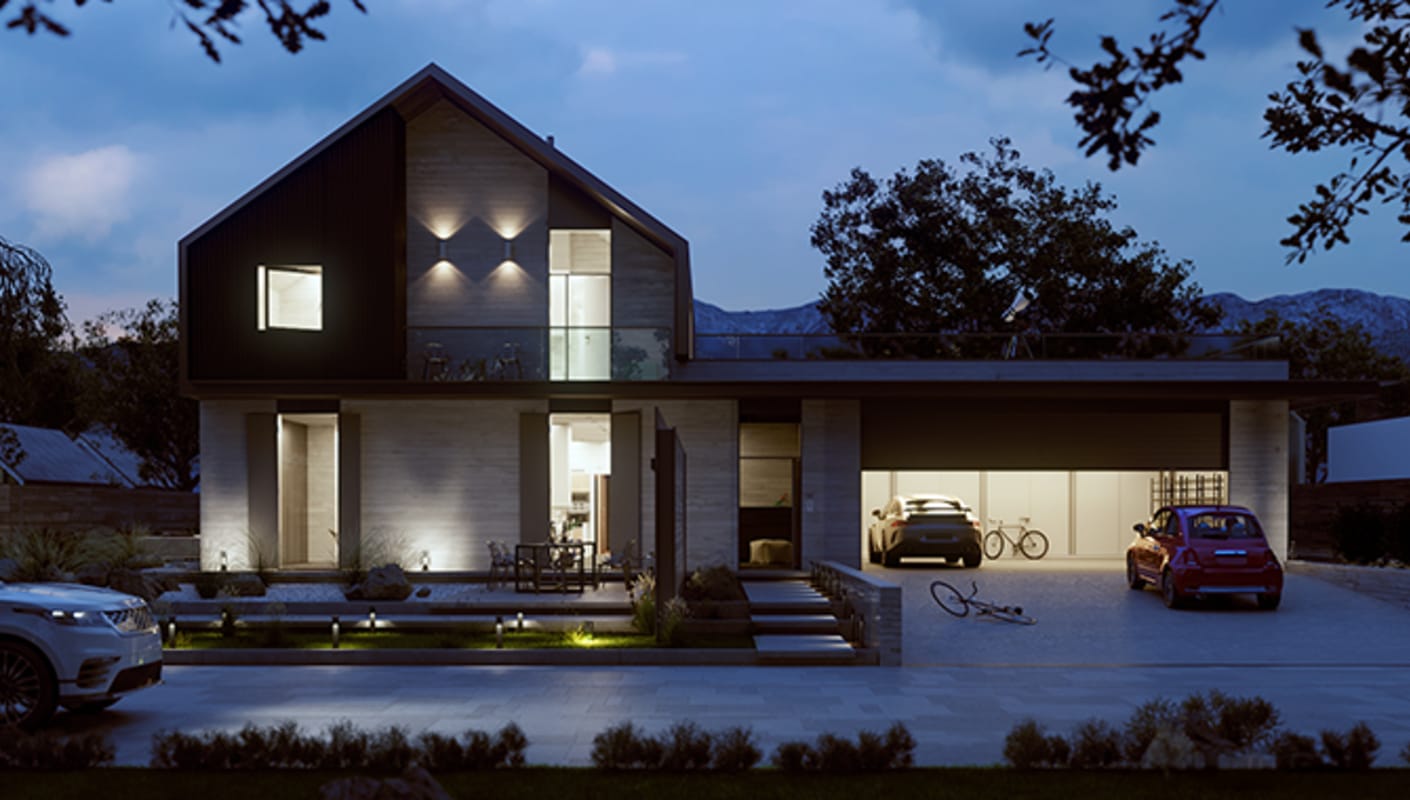
Learn how to post-process your image in the V-Ray Frame Buffer for some really impressive results. See how to add render elements, apply color corrections, and work with the Light Mix to fine-tune the lighting of your scene, without the need to re-render everything.
Want to learn V-Ray tips & tricks before anyone else? Subscribe to  ChaosTV.
Make the most of V-Ray for Rhino. See the latest and greatest features in this short video tutorial series, and learn how to unlock their powerful capabilities.
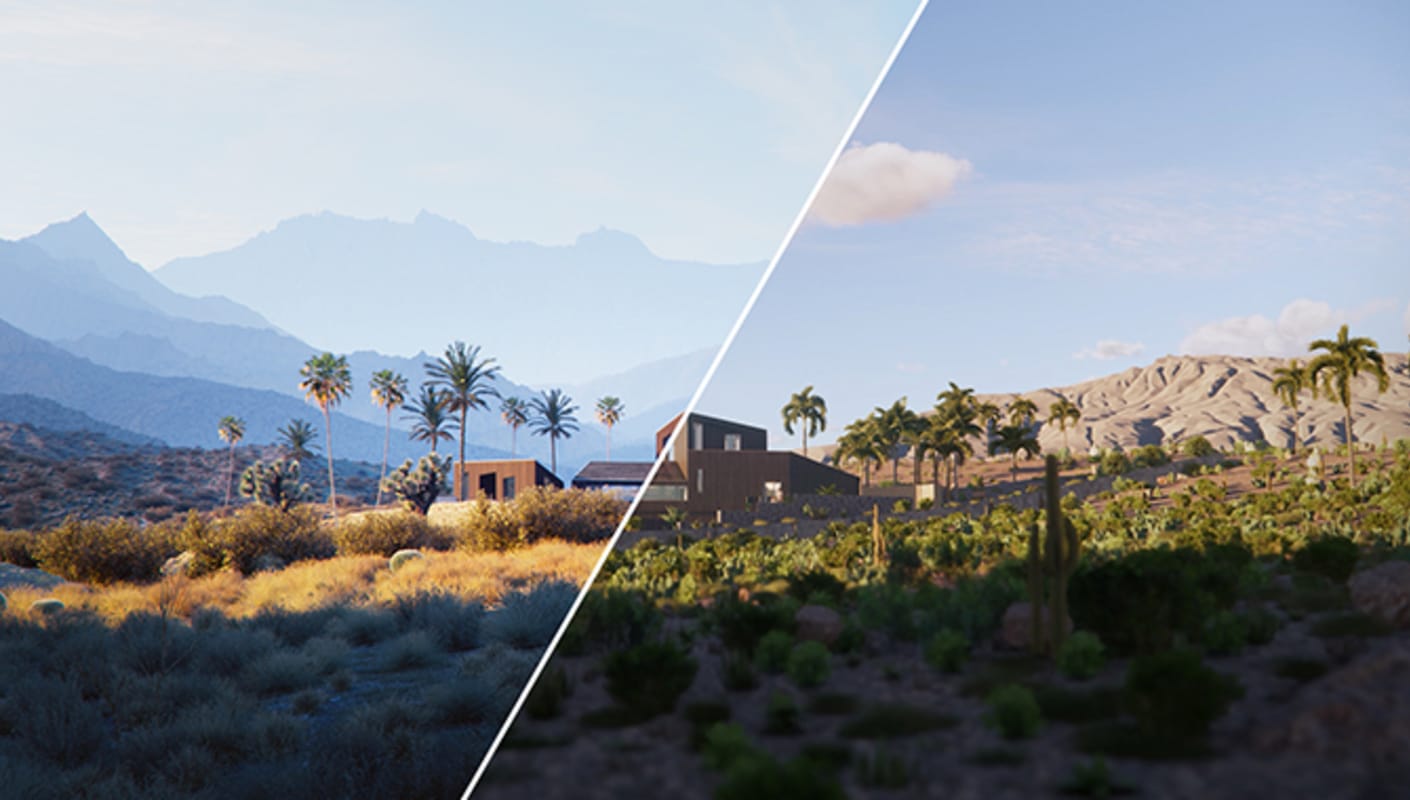
Learn how to transfer Enscape projects to V-Ray 6. Bring Enscape materials, lights, and compatible 3D models inside V-Ray and take them to photorealism.
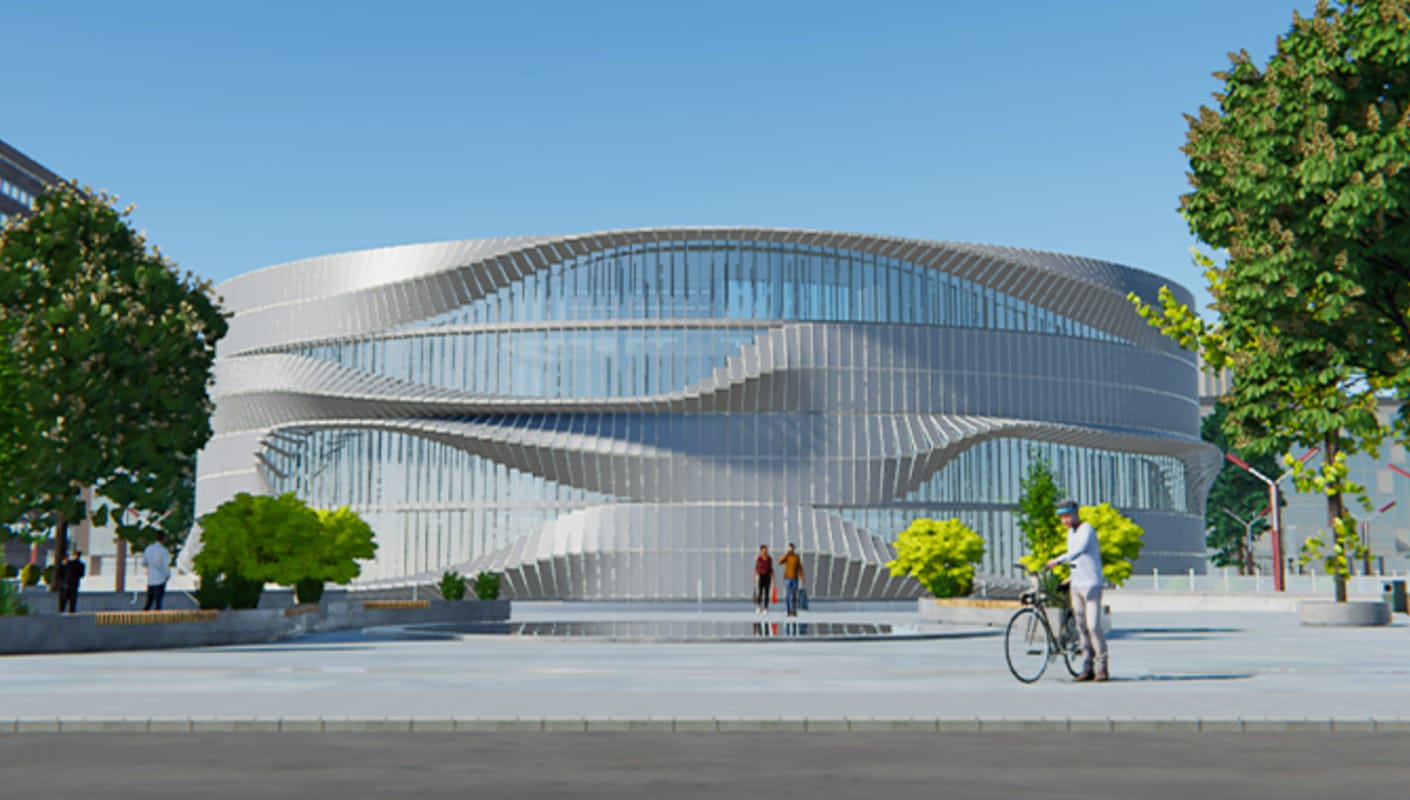
Find out how to use V-Ray’s lightweight viewer to explore scenes, create quick previews, export animations, and more. Learn about the different ways in which you can optimize your scene for maximum responsiveness when modelling. And discover how you can achieve maximum visual fidelity when exporting images and animations for presentations.
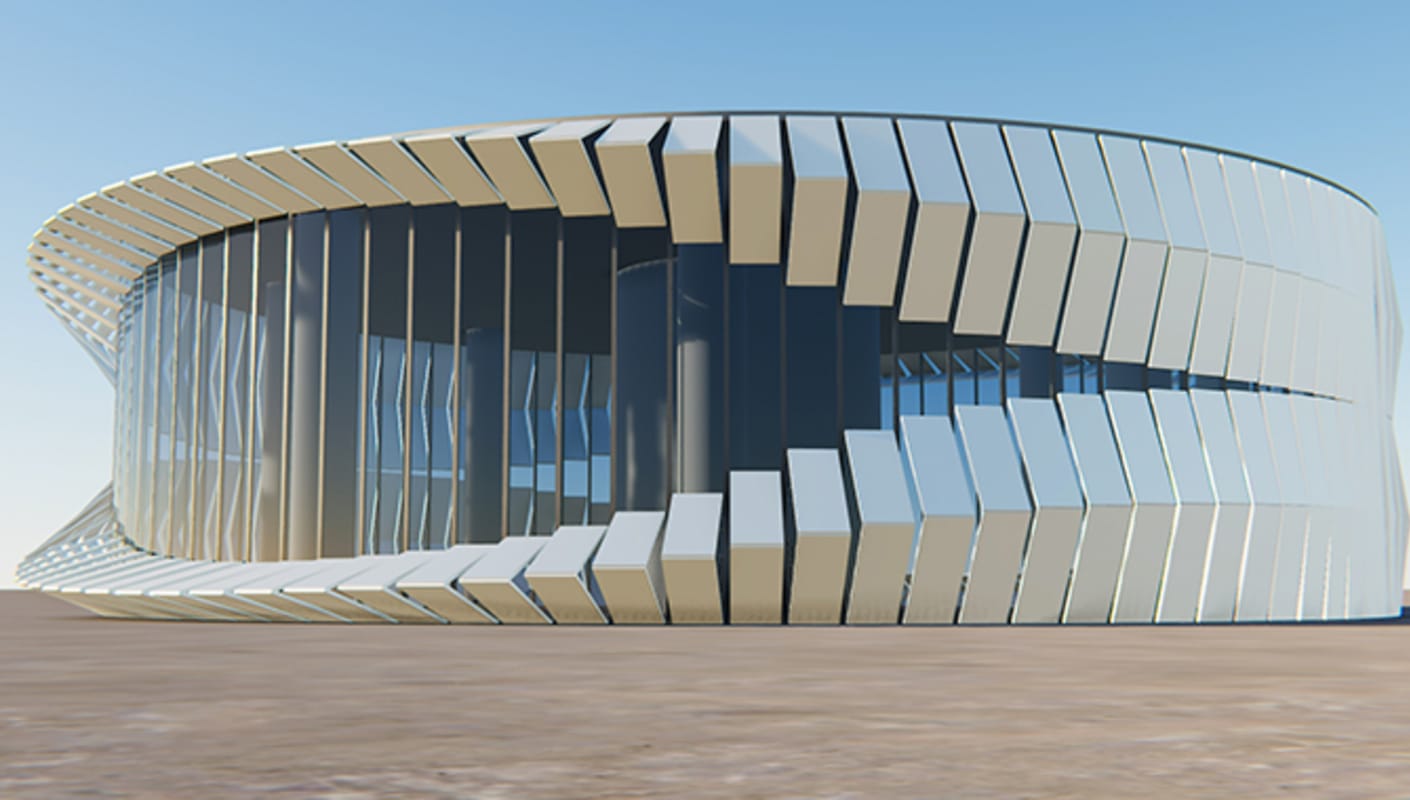
V-Ray Vision can also aid parametric modeling with Rhino’s powerful Grasshopper tool. See how you can set up the Vision Live Link and adjust camera, lights, and materials to experiment and make better design decisions. Deep-dive into setting up animations from Grasshopper’s node system and more.
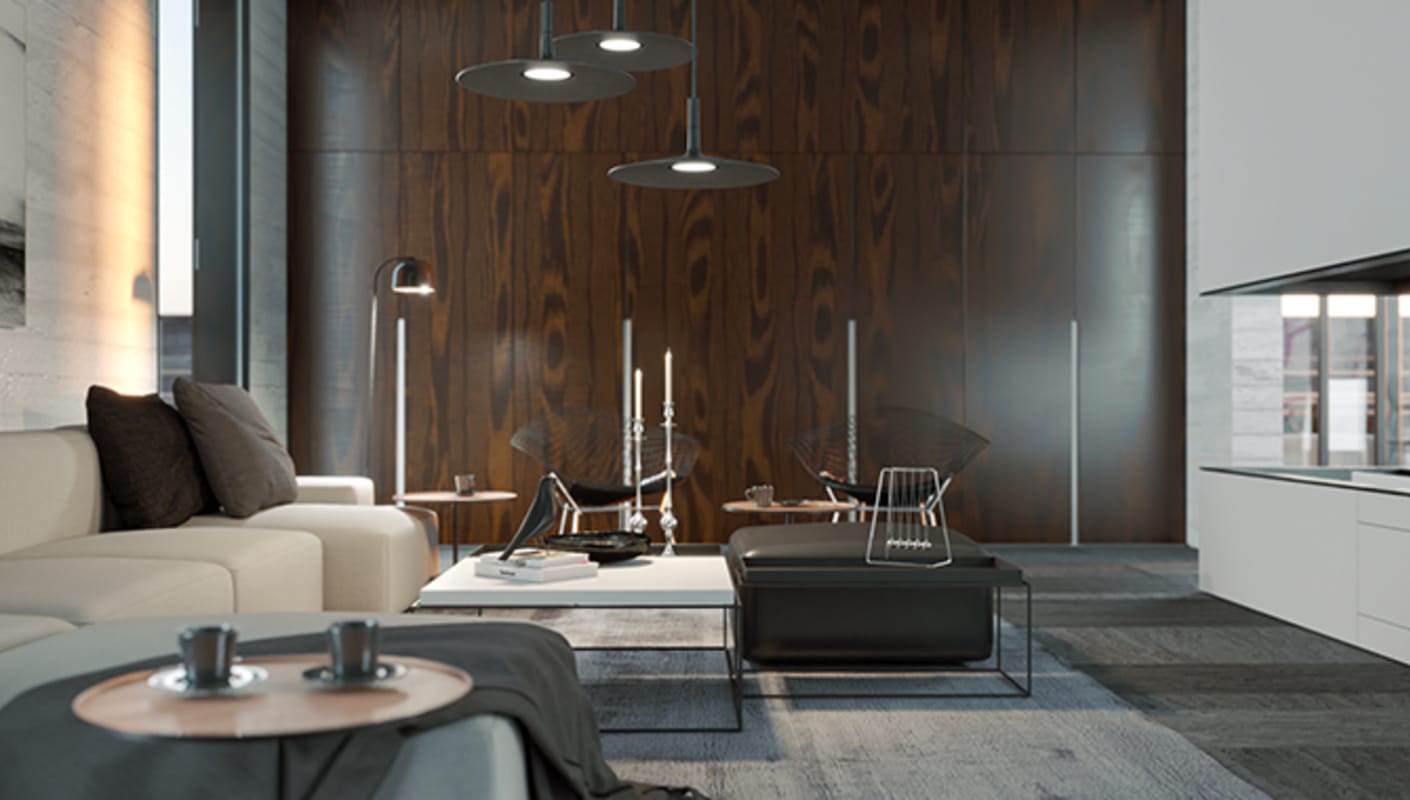
Take your projects to the next level with Chaos Vantage. Navigate your most complicated scenes in pure ray-traced real-time without any setup. Simply select the Live Link and start exploring your model’s true materials and lighting, and easily output animations and images.
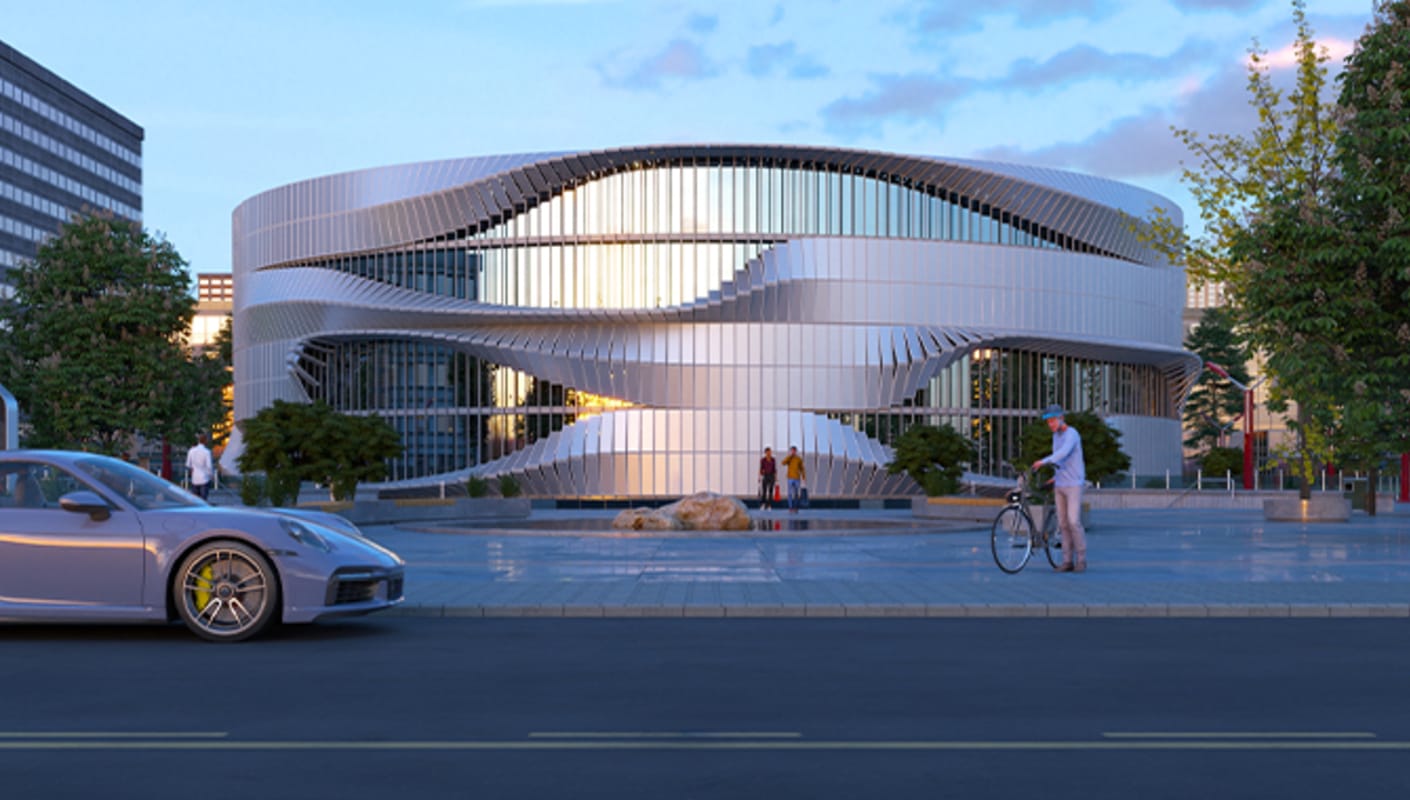
Learn how to stage your scene with smart 3D models and HDR skies. We’ll also demonstrate the optimal ways to share projects containing Chaos Cosmos assets with colleagues or send them for rendering at a render farm.

Chaos Cosmos adds materials to the ever-increasing collection of smart V-Ray content. Make use of a virtually endless range of render-ready materials by customizing them with the familiar V-Ray material parameter system.
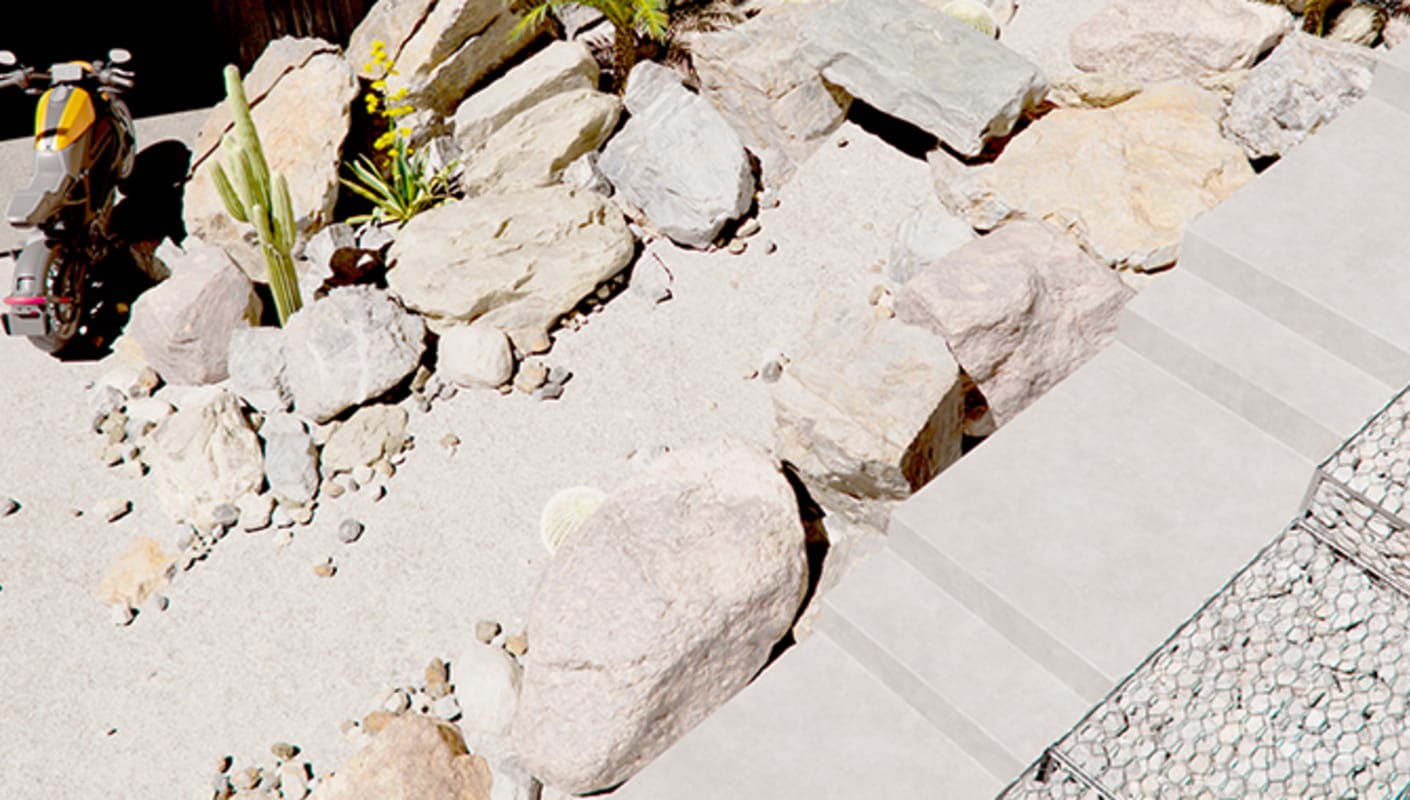
Learn how to improve the realism of material and procedural effect placement using the Distance Texture. Pick reference objects in your composition and control the texture distribution based on their proximity.
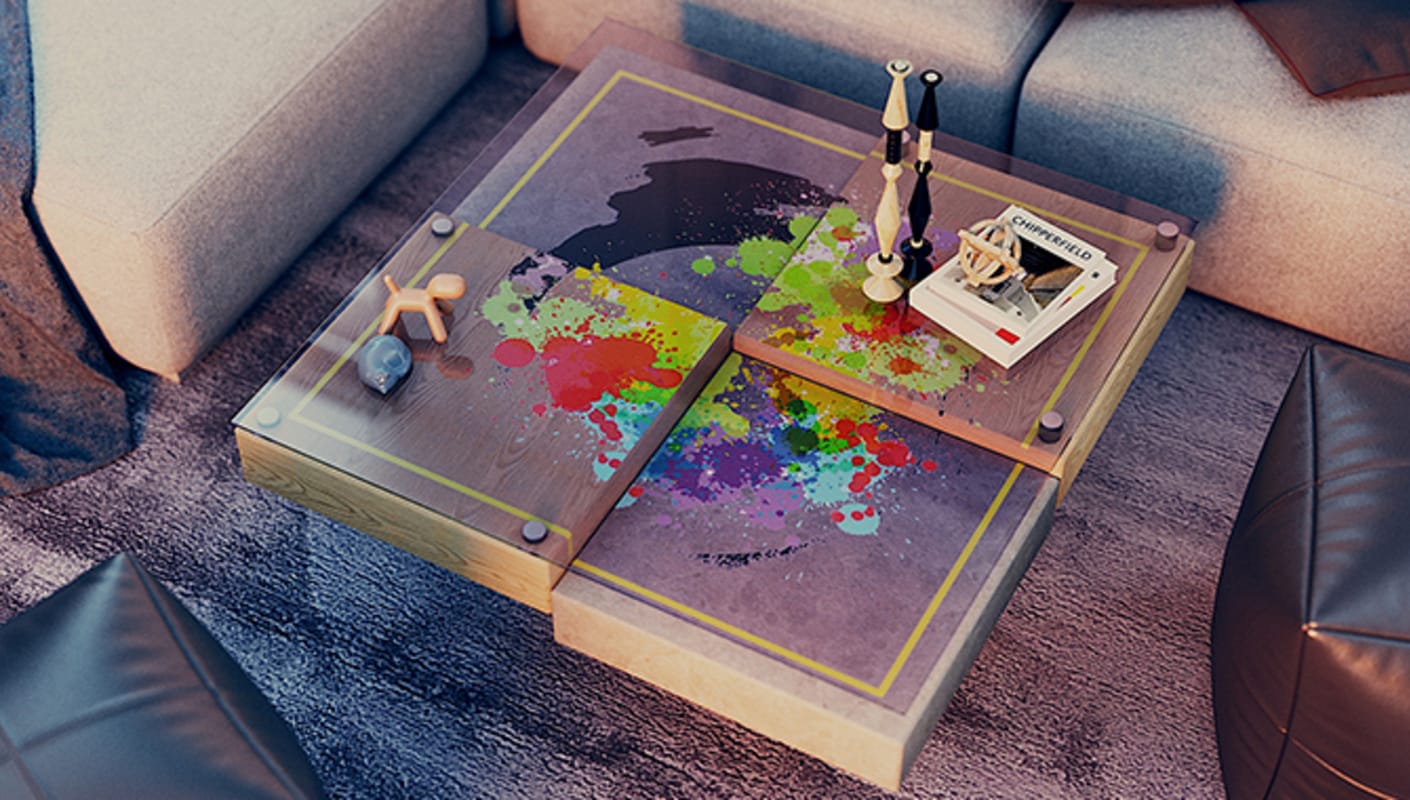
Use V-Ray Decal to project unique materials onto an object or groups of objects in your scene. Control their size, orientation, and projection limit. Stack decals upon one another without ever disrupting the underlying object material.
New to V-Ray for Grasshopper? Learn how you can render your parametric design straight from Grasshopper in this beginner-friendly onboarding series. In these video tutorials, we will cover the basics of setting up lighting, materials, cameras, and animations.

Get an overview of the V-Ray for Grasshopper UI and the main components you’ll need to start rendering. We’ll demonstrate how to configure the render settings, set up a camera, visualize your definition in real-time, and more.
In this video, we will explore the V-Ray’s Geometry panel. Learn how to set up an infinite plane, create memory-efficient copies of repeating objects, and import proxy objects from other projects.

Learn how to populate your definition with 3D models from Chaos Cosmos, V-Ray’s render-ready 3D content library. You’ll also see how to scatter objects with the help of V-Ray Scatter.
Learn how to use the different lighting systems V-Ray offers — V-Ray Sun and Sky’s procedural lighting, and image-based lighting. Plus, we place artificial lights, multiply them using instances, and vary their color.
Learn the different ways to apply materials to your definition. We will demonstrate how to build material from scratch, how to make use of your existing shaders, and how to import materials from Chaos Cosmos.

Learn how to set up V-Ray’s Physical Camera. We will also demonstrate how to bring extra realism to your render with a depth-of-field effect.
Delve into the topic of animation and see how to animate the camera. Learn how to utilize the Timeline component, preview your animation with V-Ray Vision, and render animation sequences with V-Ray for Rhino.
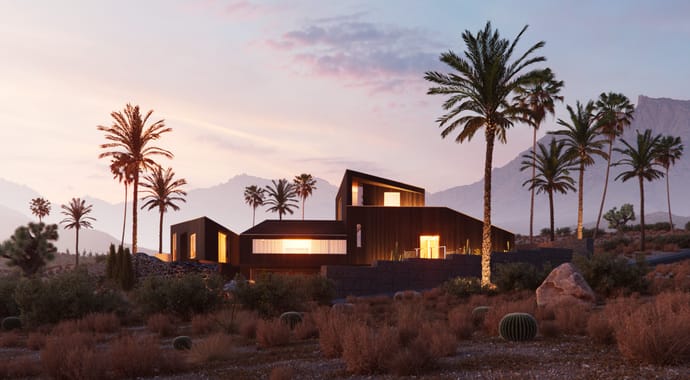
Join Boyan from the Chaos 3D team as he showcases some of the powerful new features and demonstrates how they can help you streamline your workflow and create faster than ever before. You will learn how you can save time and assure seamless end-to-end design process with the Enscape to V-Ray compatibility, how to create beautiful skies with less effort and how to build complex geometric patterns for materials with ease and much more.
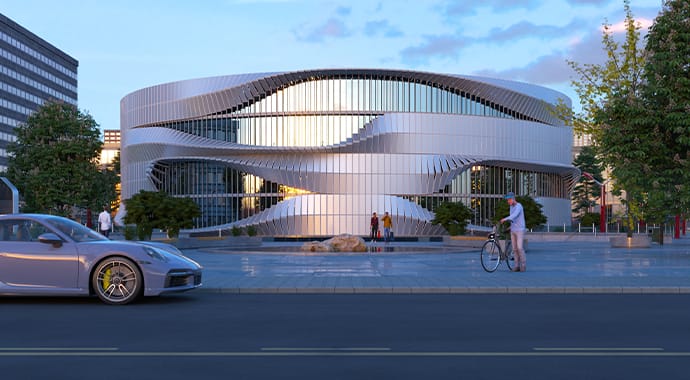
Join Chaos' V-Ray for Rhino product manager, Konstantin Gaytandziev, to see how the powerful and time-saving features in V-Ray 5 can accelerate your daily workflow. Watch as he explores and populates a state-of-the-art sports center, experiment with lighting and create multiple renders in just a few minutes.
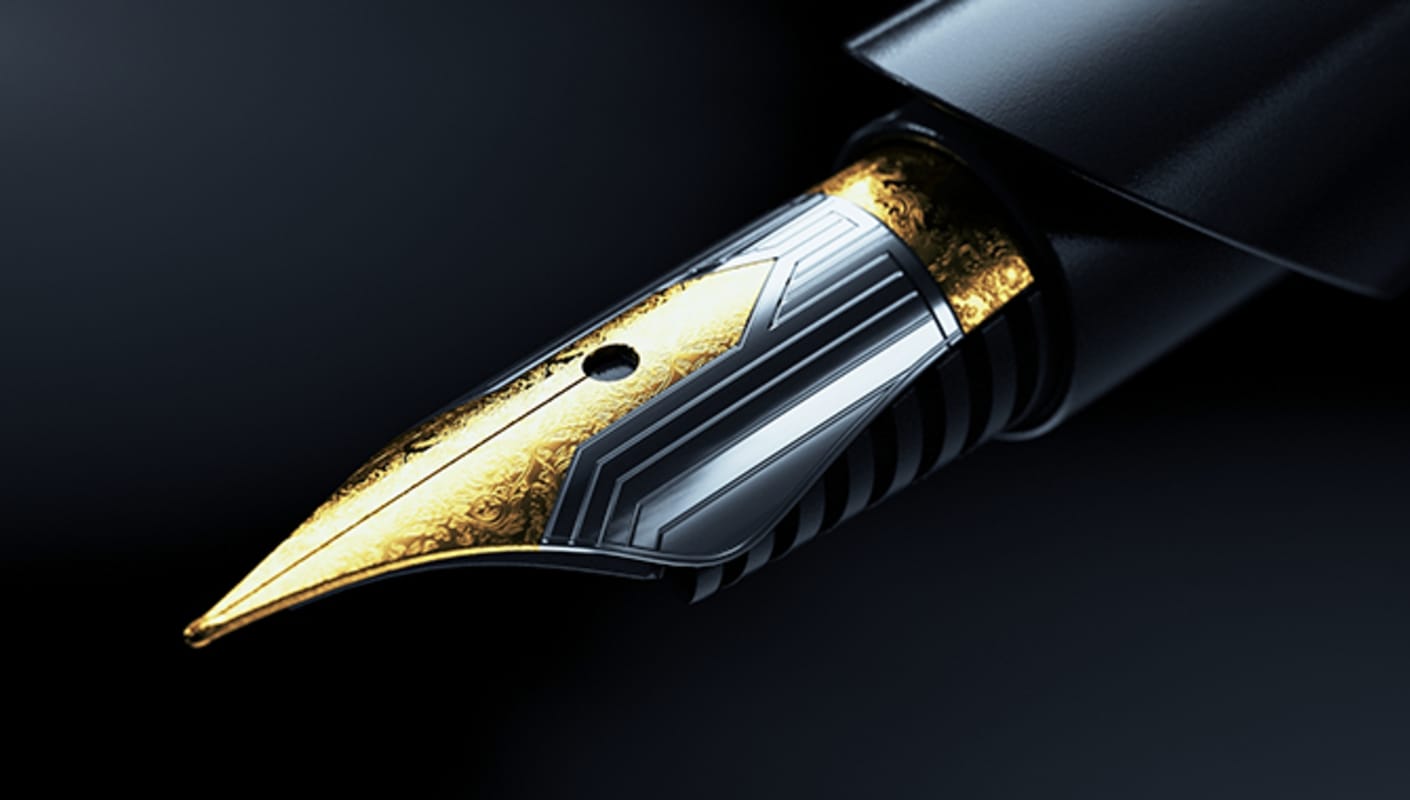
These free architectural and product scenes are perfect to start rendering with V-Ray for Rhino. Each scene includes assets and renders and is perfect for you to apply the skills learned in video tutorials.
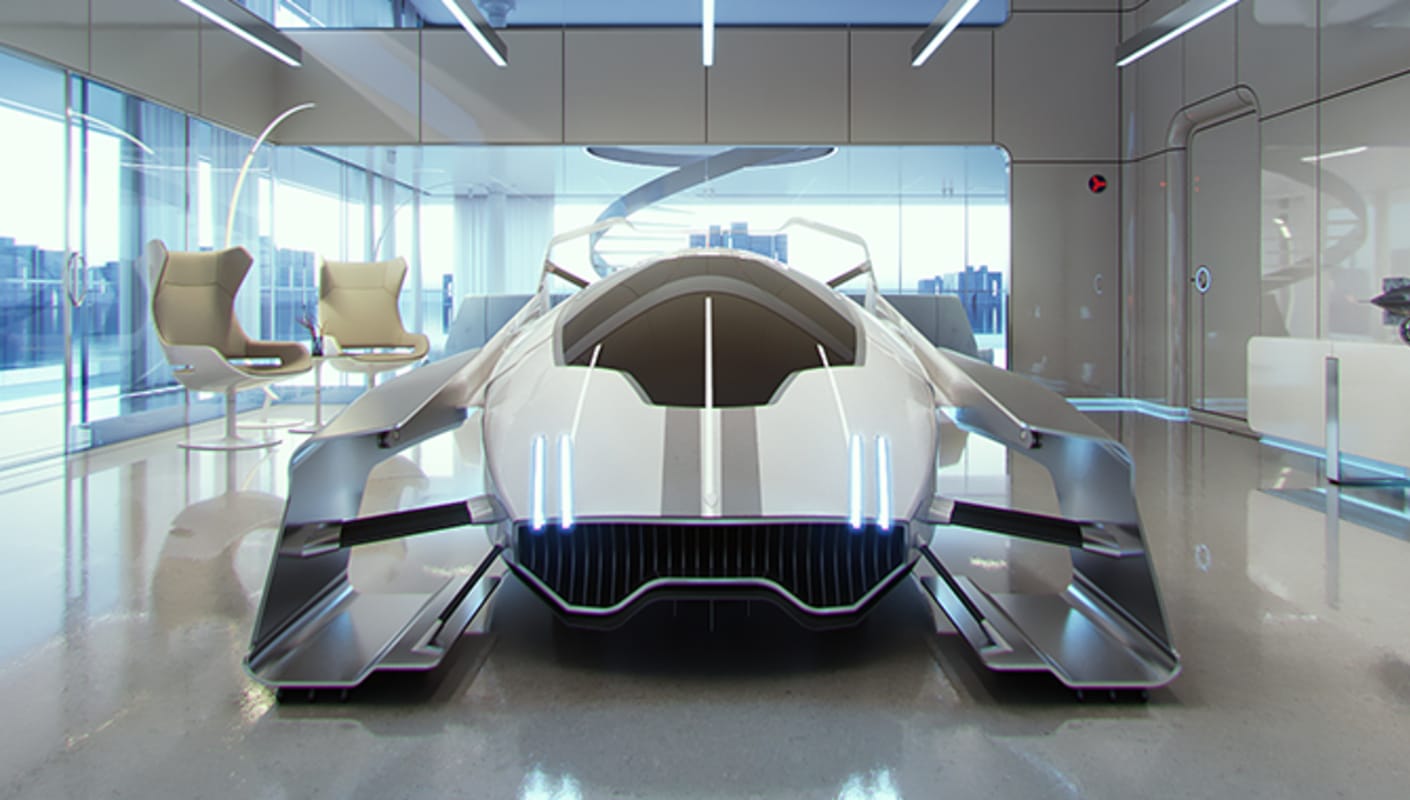
The Chaos documentation site is the best place to find in-depth technical descriptions of V-Ray features and their parameters, as well as useful visual demonstrations of the settings in action.