Chaos

What are you looking for?

header-1920x600_(4).jpg
glyph-logo-color-white-rgb.svg

Smart documentation for AEC professionals.

Generate views, sheets, dimensions, tags, and annotations in Revit - all in just a few clicks.

SMART DOCUMENTATION WITH AN AI ASSISTANT

Glyph

Glyph is an automation tool for Revit that streamlines documentation tasks like creating views, sheets, tags, and dimensions in just a few clicks. It helps teams save hours of manual drafting by turning repetitive BIM workflows into fast, reusable, and consistent processes.


Automated documentation workflows.

Speed up Revit documentation by automating repetitive tasks that normally take hours.Use Enscape while working on-site or while traveling

  • Auto-create views, sheets, and drawing sets in seconds.
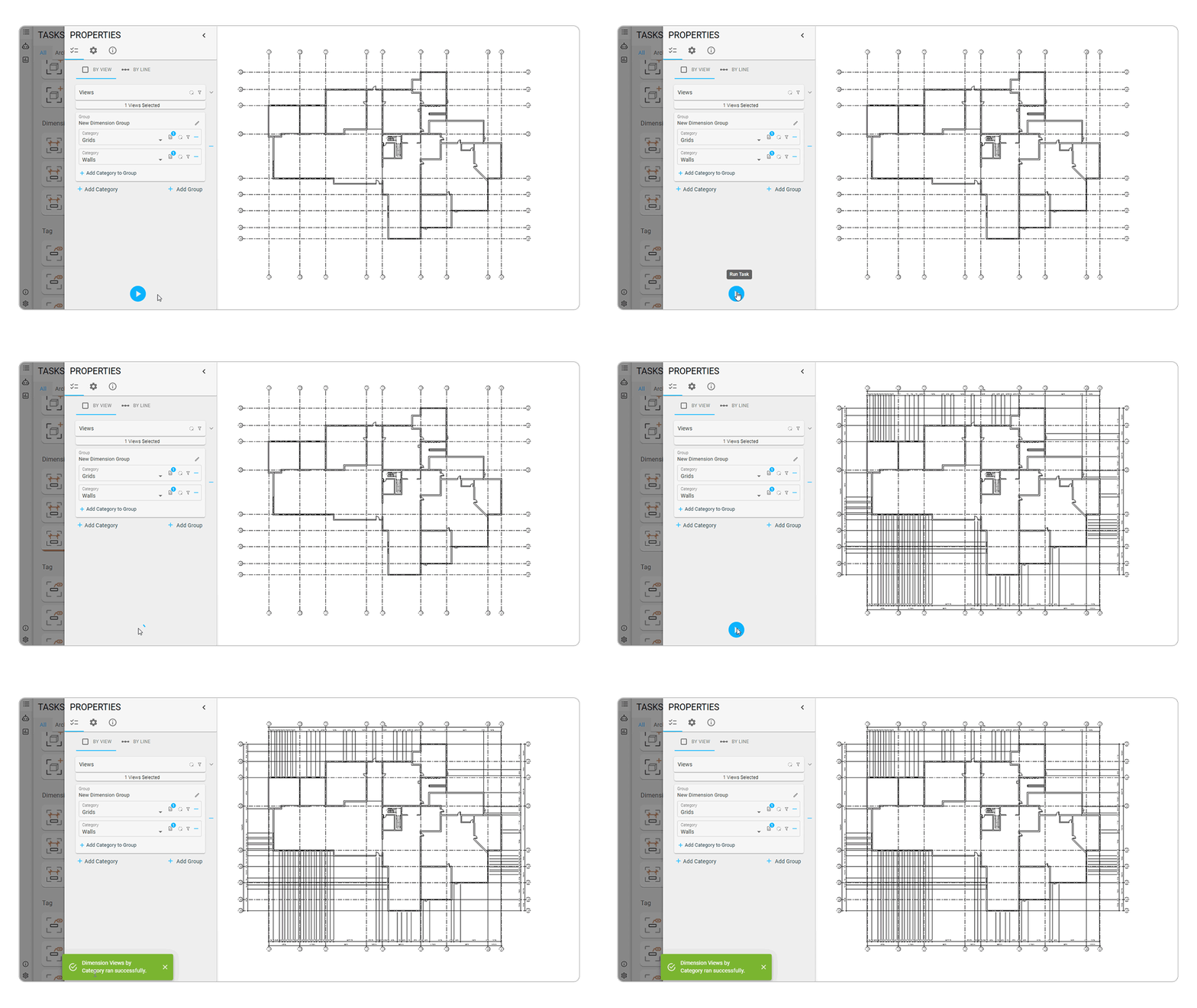
  • Generate dimensions and tags across multiple views.
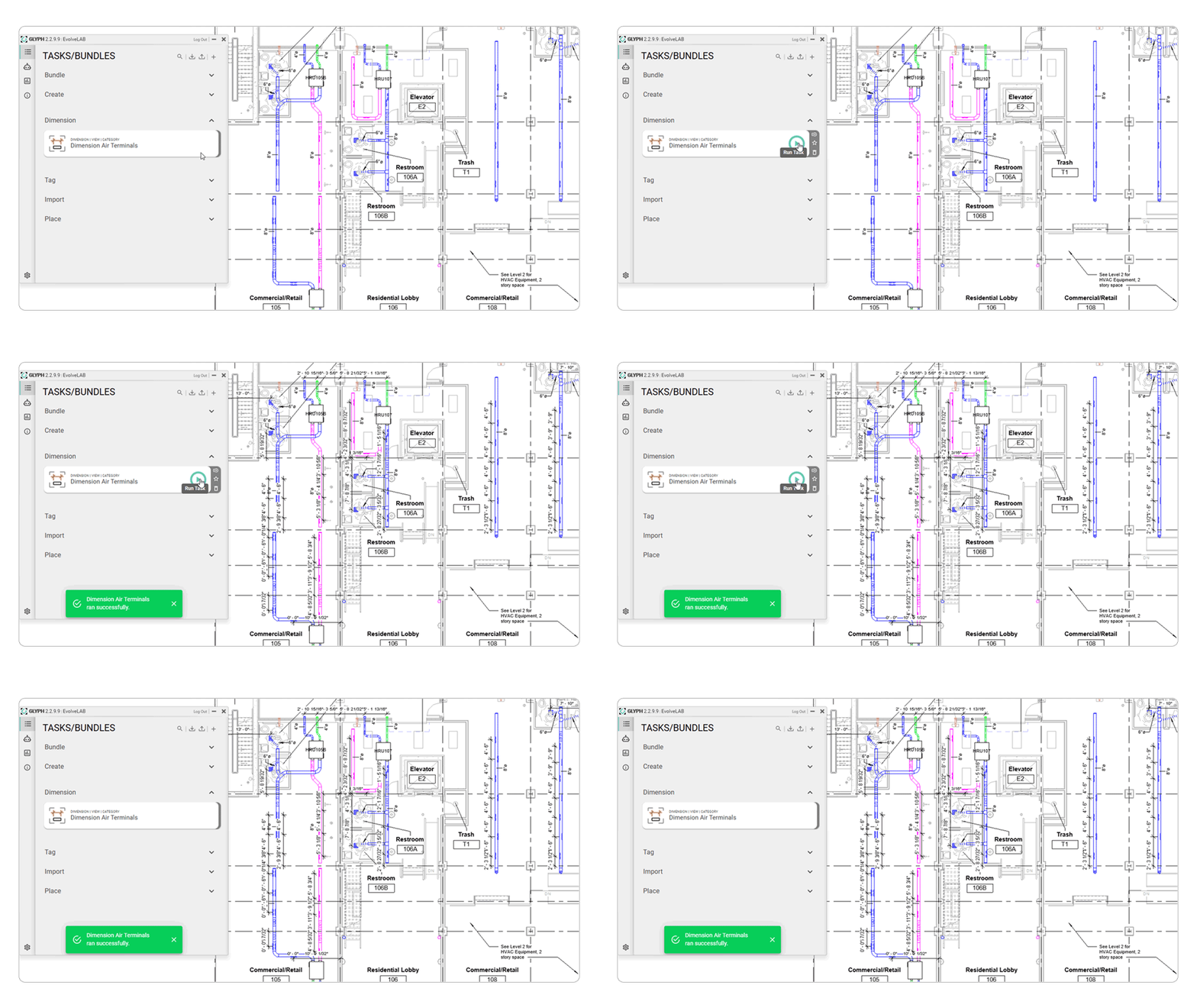
  • Run bundled tasks to complete entire documentation steps with a click.
Automated-documentation-workflows_(1).gif
Consistent-standards-driven-output.gif


Consistent, standards-driven output.

Ensure every project follows your office standards without manual checking.

Auto-create views, sheets, and drawing sets in seconds.

  • Apply predefined naming conventions for views and sheets.
  • Use controlled dimension styles, tag types, and templates.
  • Share reusable tasks and bundles across teams for uniform results.


Expanded BIM capabilities across disciplines.

Handle architectural, structural, and MEP documentation with efficiency.

  • Automatically dimension walls, windows, ducts, pipes, fixtures, and more.
  • Create and tag views that reference linked architectural models.
  • Use filters to target specific categories, disciplines, or elements.
Air-Terminals.gif
GlpyhAssistant_(1).gif


AI-powered assistance for faster decisions.
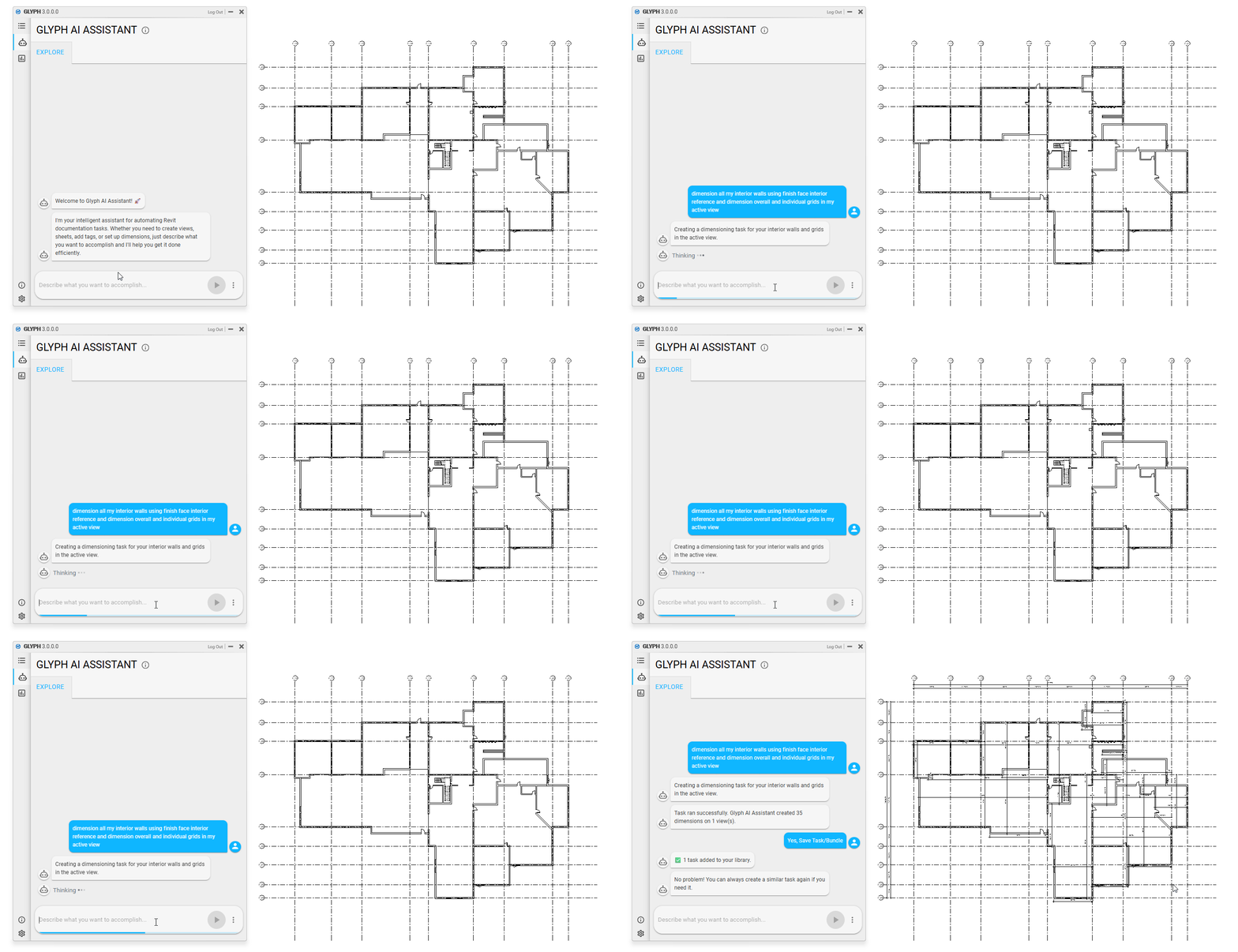
Use natural language instructions to generate documentation -no menu clicking.

  • Describe what you want (“dimension all my interior walls”), and Glyph executes it.
  • AI reads Revit context to apply or create the right tasks/bundles automatically
  • AI-driven dimensioning and tagging cuts manual work and errors.

Glyph key features

ai-powered-assistant_(1).svg
AI-powered assistant

Glyph AI Assistant lets you use natural language commands to automate tasks - just say what you need, and it executes instantly. It speeds up decision-making and documentation, especially when time is tight.

automated-dimensioning_(1).svg
Automated dimensioning

Glyph can dimension multiple views at once or dimension entire sheets by category, with options to select views/elements by category, apply filters or hand-pick elements, and choose reference planes and dimension styles per category.

automated-tagging_(1).svg
Automated tagging

Tag views or sheets by category; select which elements to tag directly from within your BIM model; and customize tag orientation, leader conditions, and tag type for each selected category.

automated-view-creation_(1).svg
Automated view creation

Glyph lets you generate views by level, by scope-box, by room, or by any category; and supports creating various view types (floor-plan, RCP, elevation, section, 3D, and schedules).

automated-sheet-creation_(1).svg
Automated sheet creation

Create sheets based on level, scope-box, or room, or even import sheet data from an Excel file. Also allows customizing sheet starting numbers, title blocks, and naming schemes.

task-bundling_(1).svg
Task bundling

Glyph enables you to combine multiple tasks (e.g., view creation + sheet creation + tagging + dimensioning) into a single “bundle,” which you can run with one click and reuse or share settings between projects.

Our approach to responsible AI.

Designers first. Chaos is committed to developing AI that empowers creators, enhances workflows, and supports the creative process with trust and transparency at the core.


Buy Chaos Glyph

A Revit plugin that automates and standardizes documentation tasks such as view and sheet creation, tagging, dimensioning, and sheet packing.
samuel-schroeder_-540x540.jpg

 “The Glyph team was incredibly patient and easy to work with. They not only met with us anytime, even before we signed on the dotted line, but they took our feedback to heart in such a way that we found they were updating their software in real-time to make sure their software did as much as it could for us out of the box. We now estimate that our Glyph subscription is allowing us to set up all preliminary project views in our multi-million-dollar projects in the same time that it otherwise would have taken us to create just one or two views. And to top it off, they still welcome our feedback, and we see our feedback addressed in as little as a week via software updates. We are lucky to have found them!”

Samuel Schroeder
Engineering Team Lead, H2I Group

See what's new

Explore the latest features in Glyph


Introducing the Glyph AI Assistant

The Glyph AI Assistant brings natural-language intelligence directly into Glyph, making Revit automation easier to learn, faster to run, and simpler to customize. Ask questions, run tasks, and create new automation workflows using plain language, without navigating complex menus or documentation. Use Glyph AI Assistant when you want to understand how Glyph works or learn about supported functionality.
glyph-assistant.gif

Frequently asked questions

Who owns the generated documents?

You do. Glyph works entirely within your Revit environment, producing output (views, sheets, tags, and dimensions) based on your model elements. Prompts and user inputs drive the results, and all output remains within your project and under your control.

How is your model data protected?

Only minimal, relevant metadata or prompt text is sent to OpenAI’s API—not the full model or views

  • All data sent to the API is encrypted in transit and handled securely
  • OpenAI’s API terms for enterprise usage prevent data from being used for training or stored after processing
  • Glyph retains all sensitive model data locally unless the user sends textual information via Glyph AI Assistant chat message
Does Chaos use my prompts or model elements/features in Glyph for machine learning?

At the moment, Chaos does not collect any app-usage data or prompts. If this changes, we will inform users immediately.

Where are tasks saved?

All settings, including name, description, filters, view templates, dimension options, and more, are saved within the Task or Bundle. Tasks and bundles are saved inside the Revit project when the Glyph UI is closed.

We recommend creating tasks and bundles within your Revit starter project or Revit template for best workflow efficiency.

How can I export these tasks and bundles?

You can export tasks and bundles using the import/export buttons in the Glyph window. For more details on exporting and importing, visit this link: How to create, duplicate, delete, export, or import tasks/bundles


Why can’t I run a bundle I created?

You may be unable to run a bundle if certain elements in the task have not been selected. To resolve this, change the “Element Selection Option” to either “Output from previous task” or “Select new elements.”


If my task fails, how can I find out what happened?

Using the status report, you can view what Glyph created and any warnings that occurred while running the task or bundle.


Chaos
© 2026 Chaos Software EOOD. All Rights reserved. Chaos®, V-Ray® and Phoenix FD® are registered trademarks of Chaos Software EOOD in Bulgaria and/or other countries.