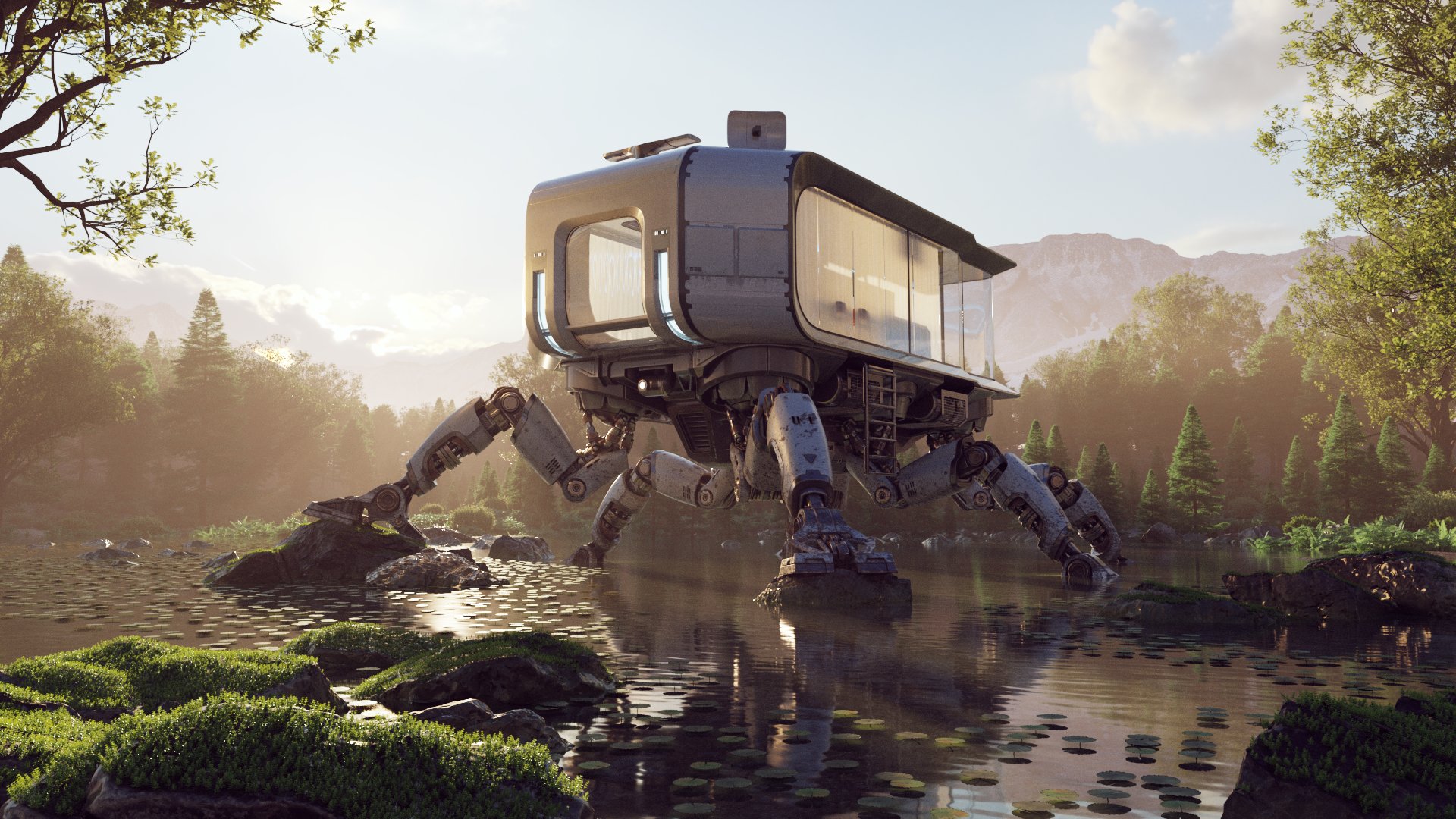
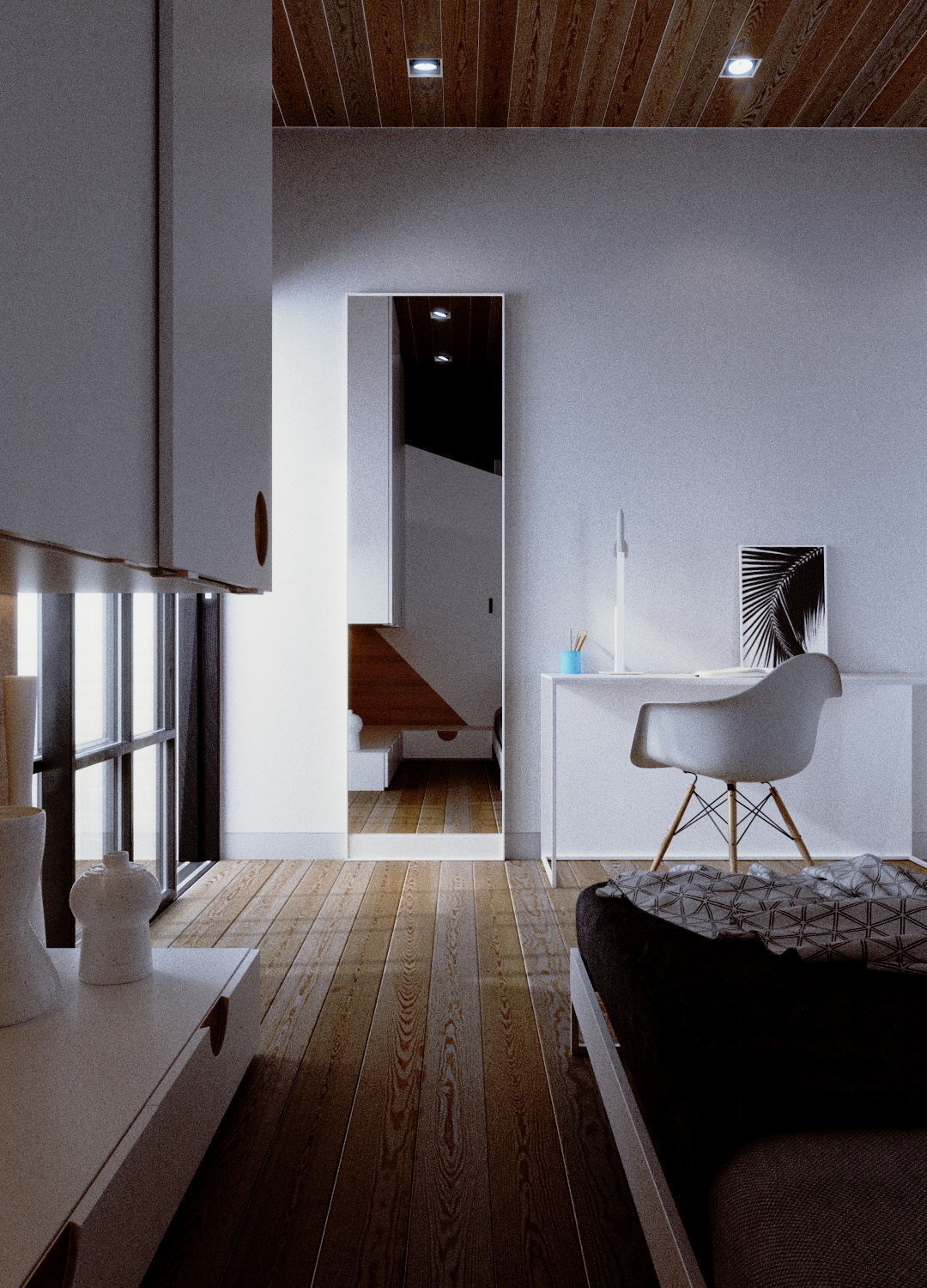
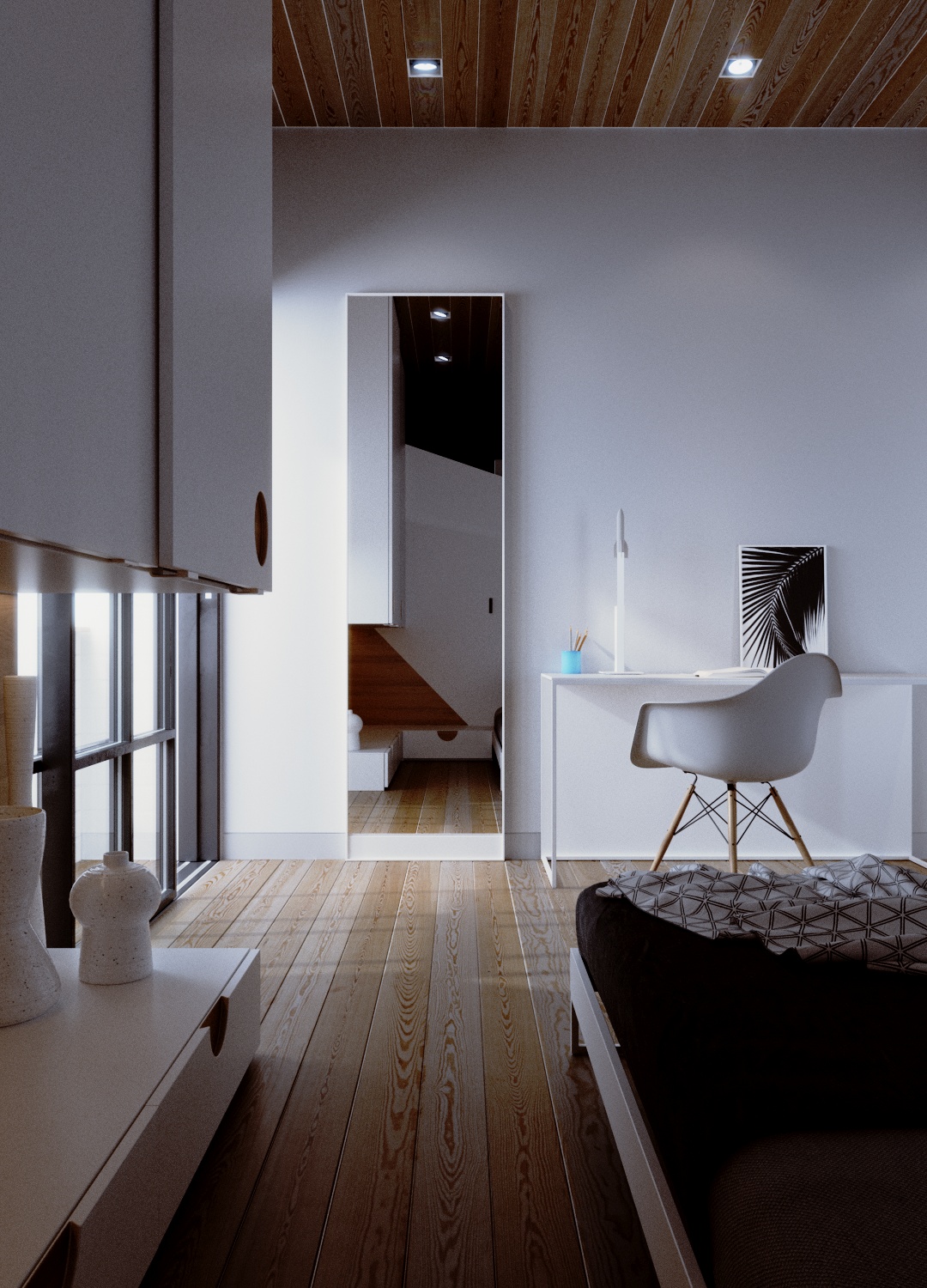
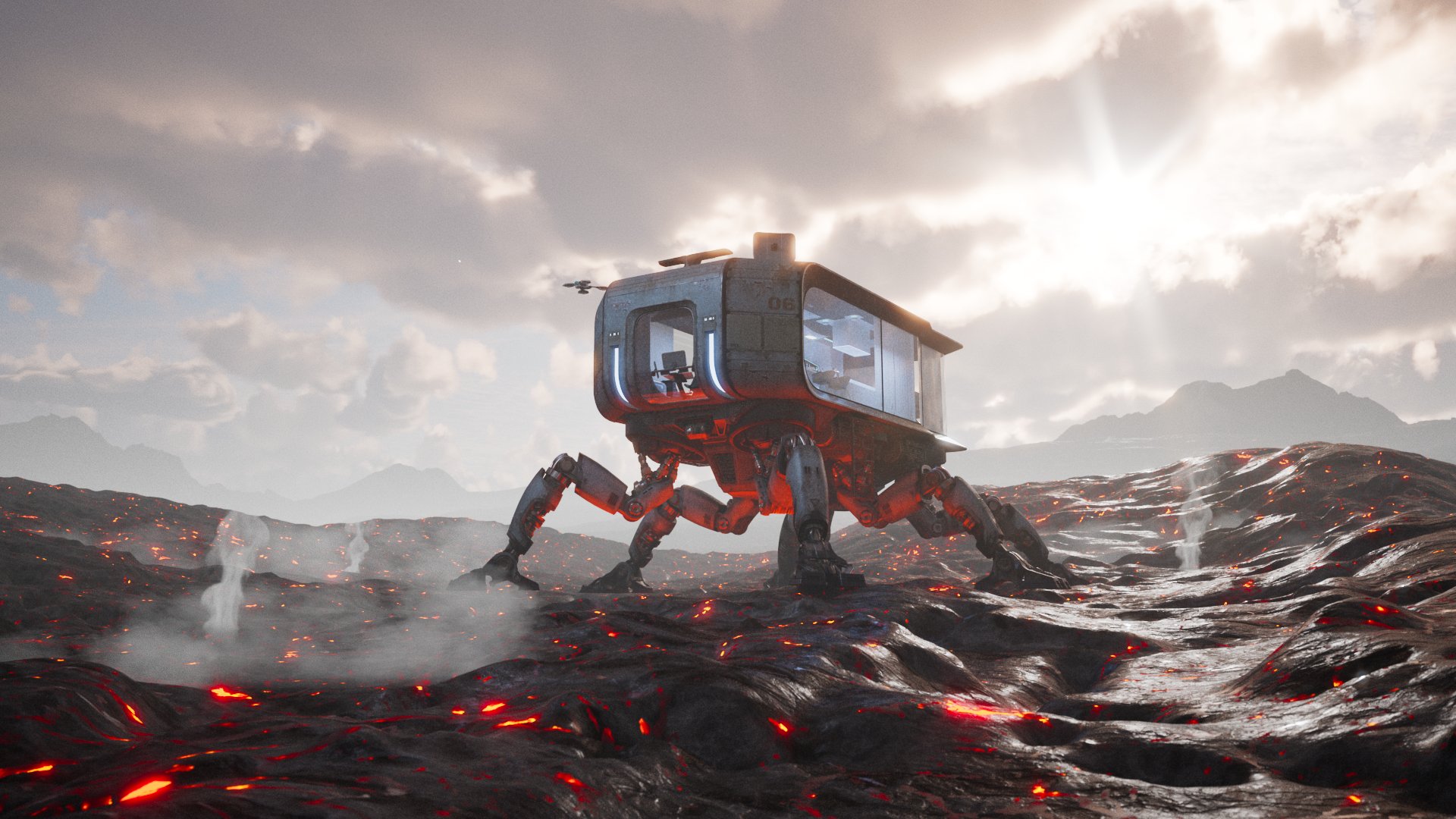
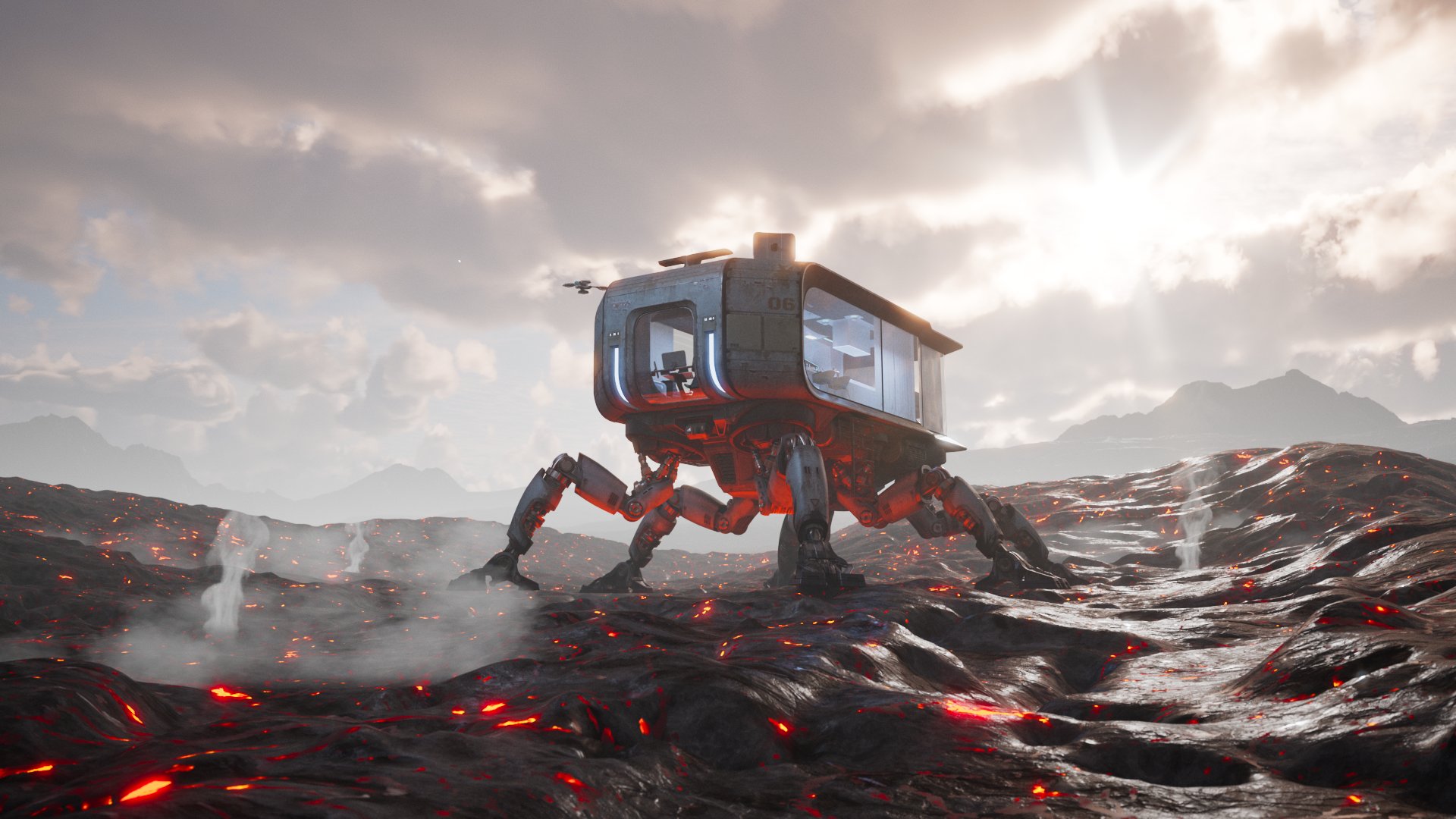
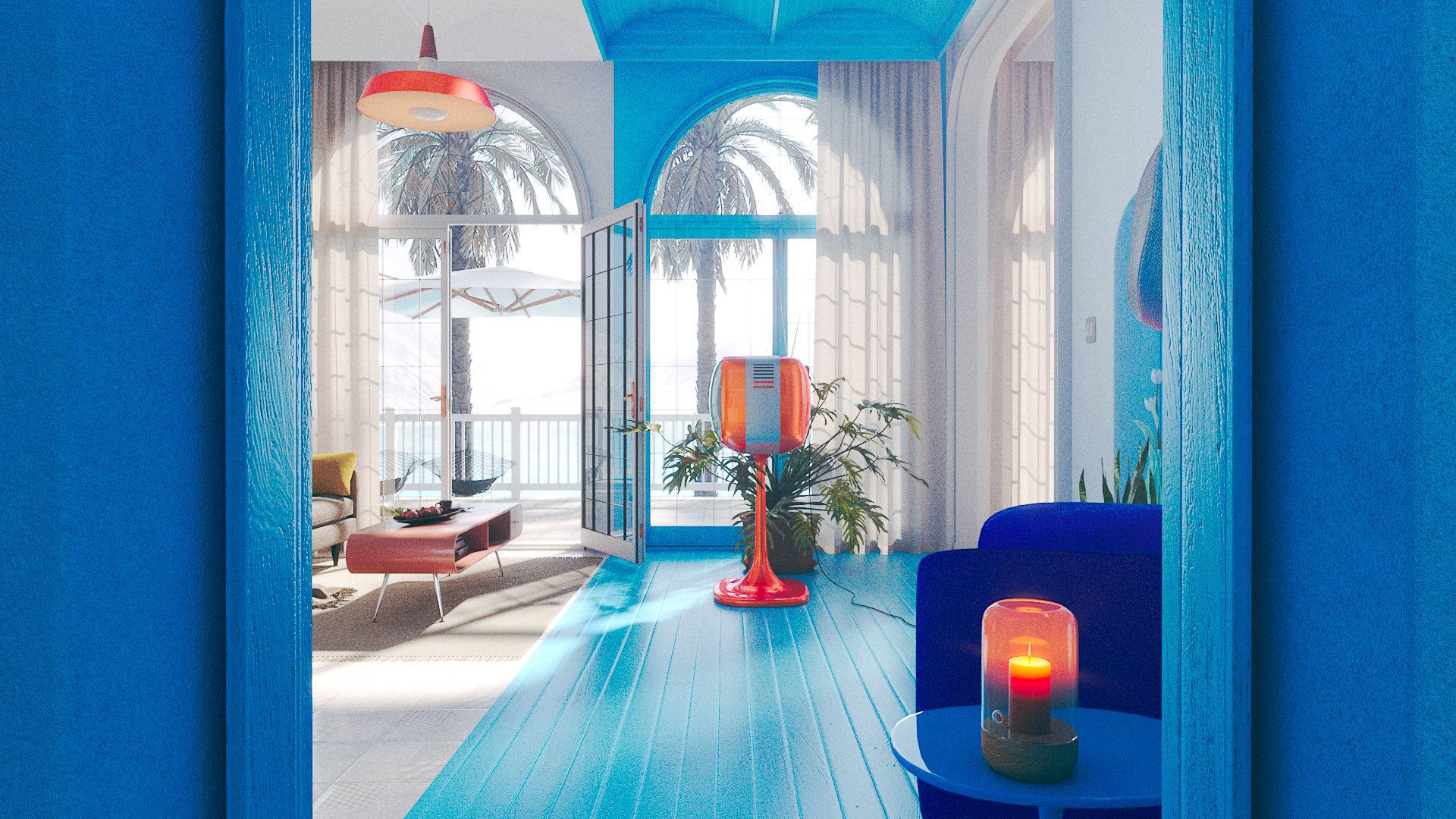
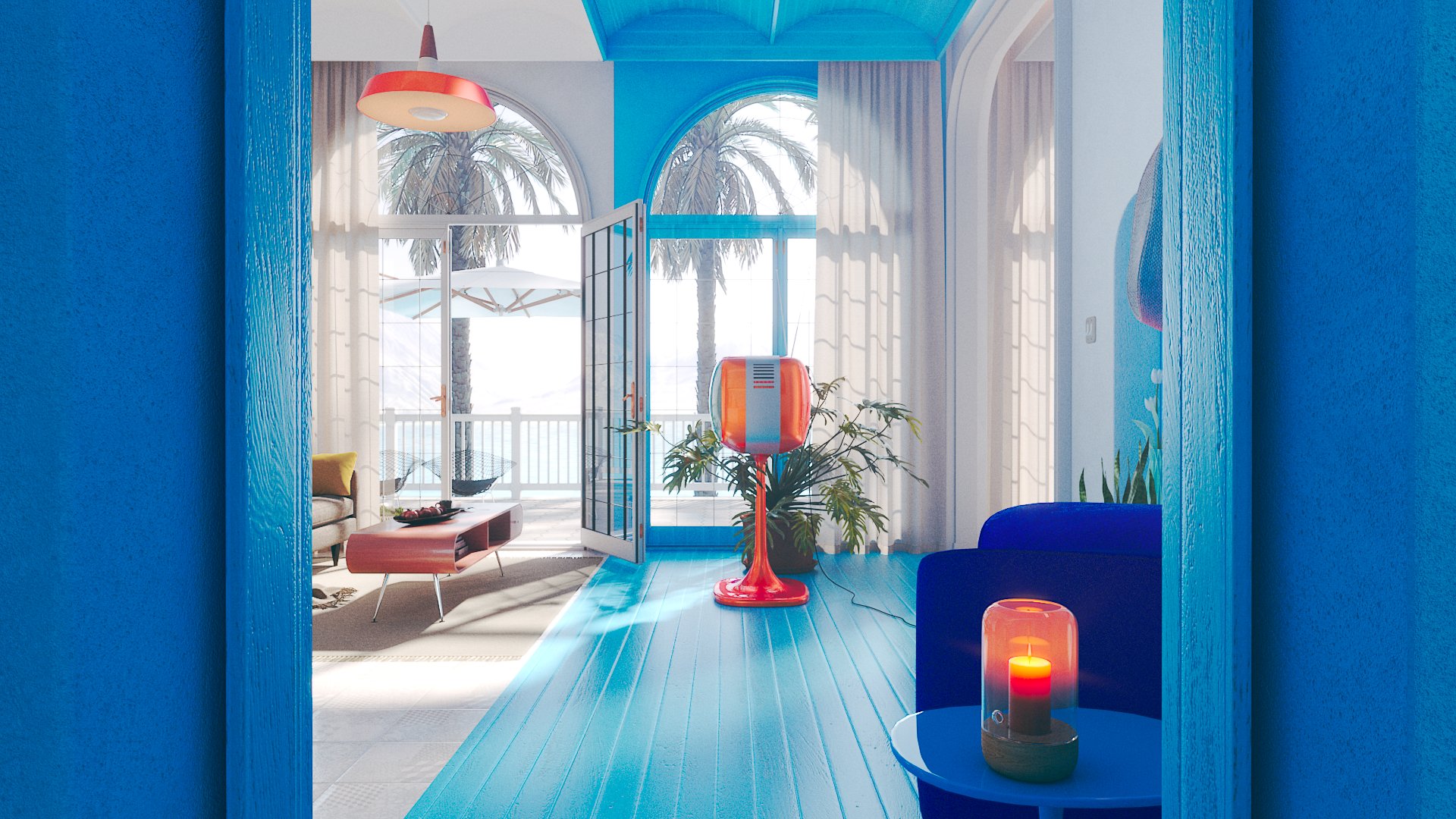
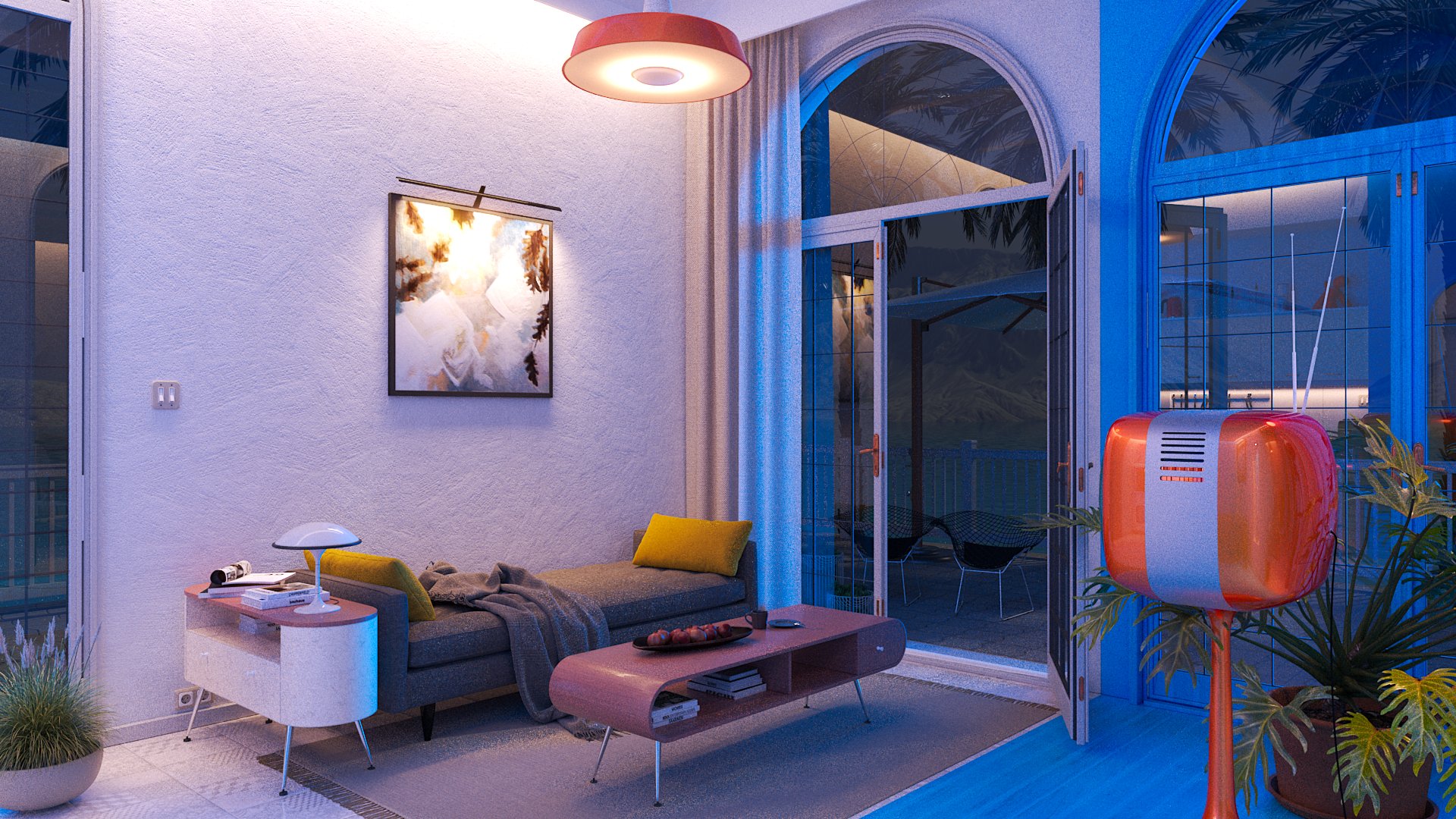
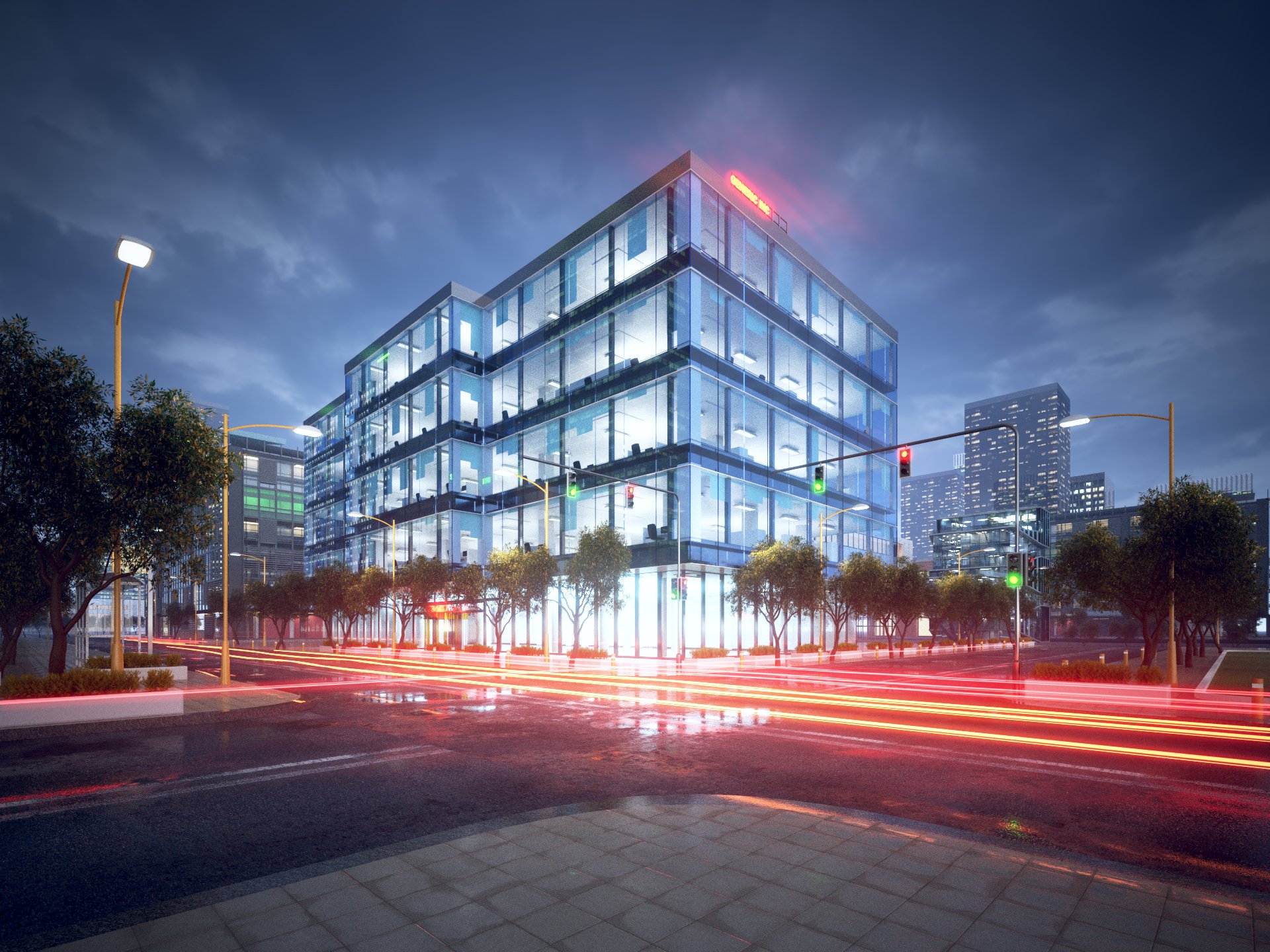
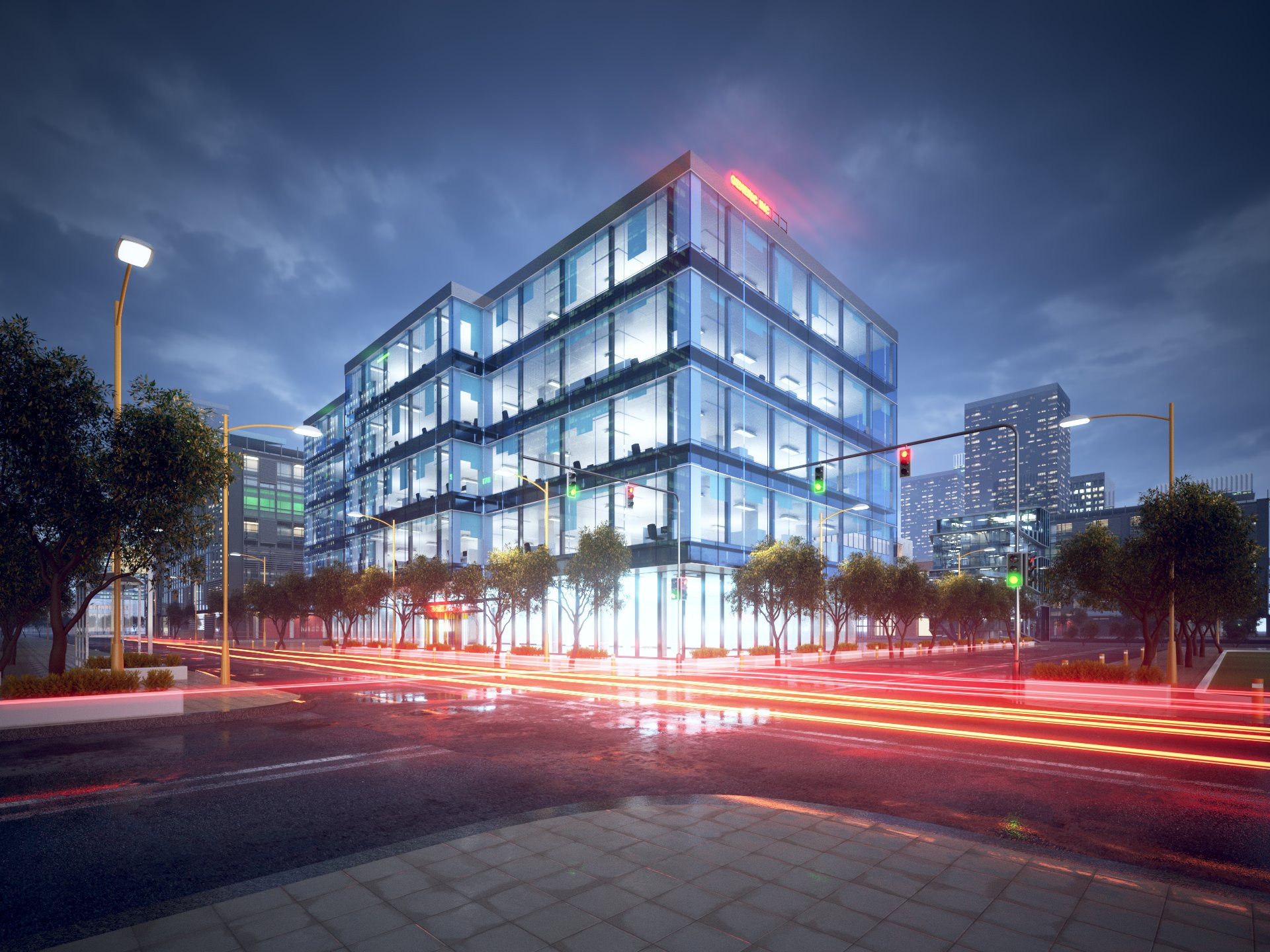
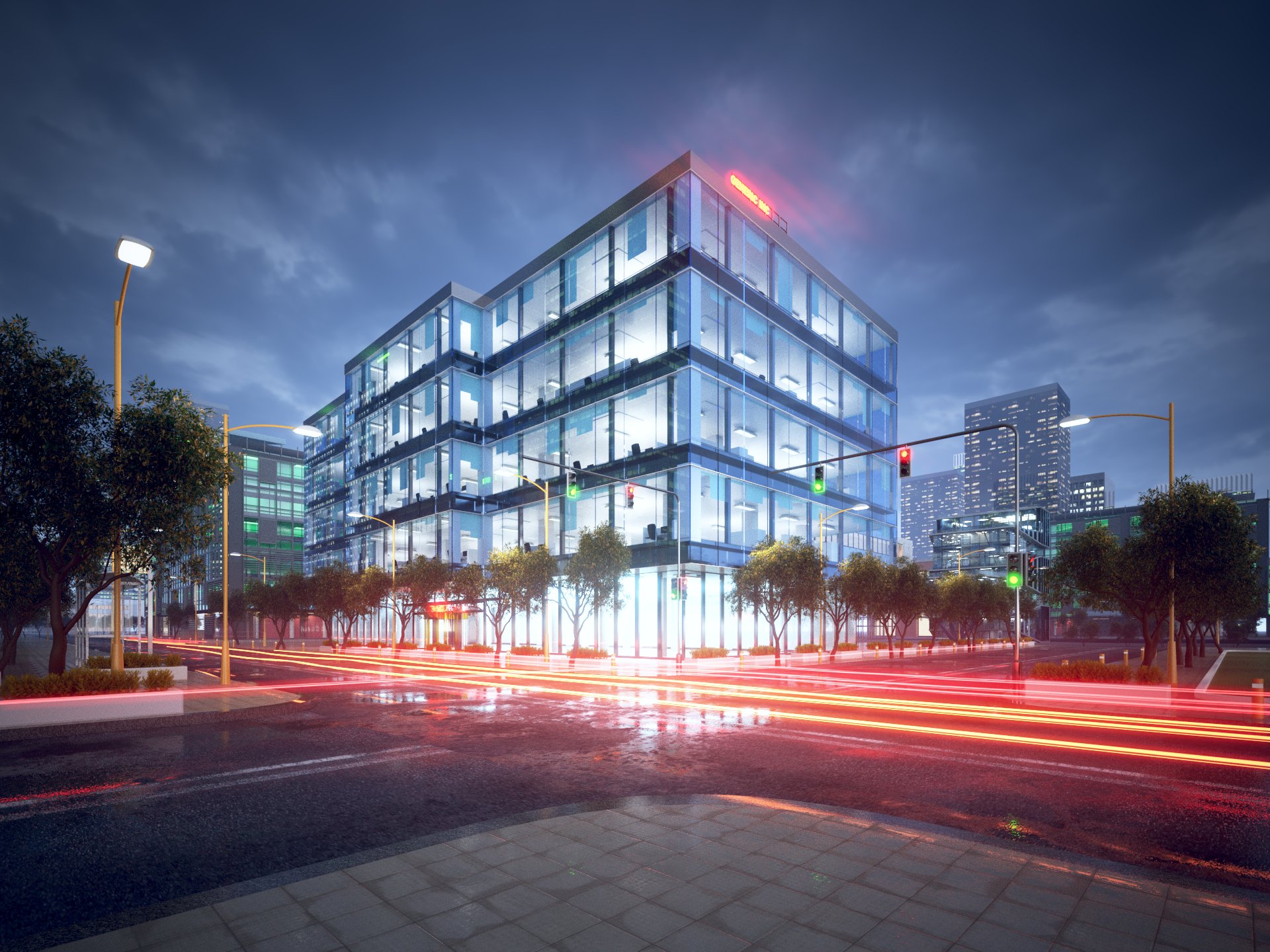
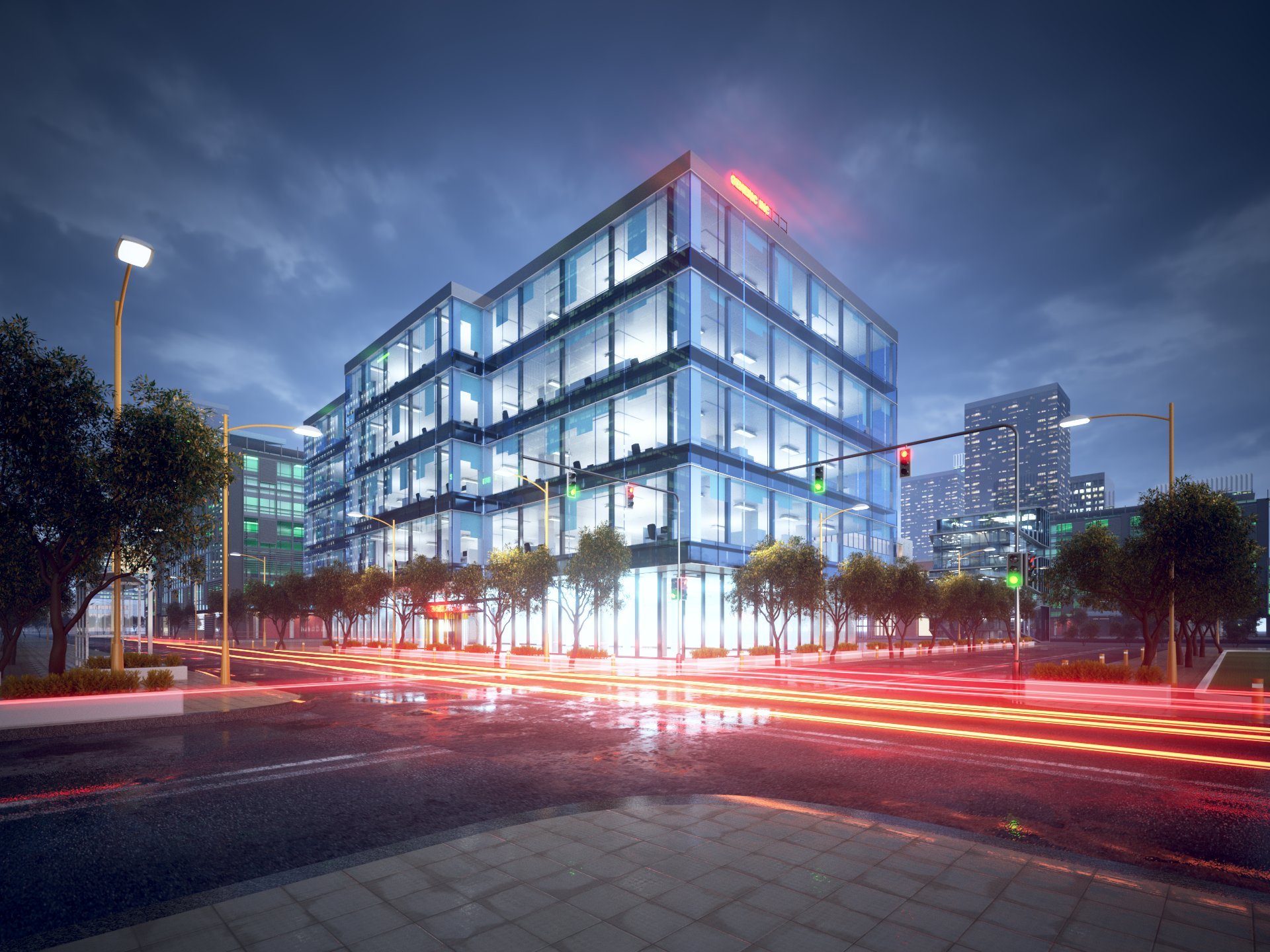
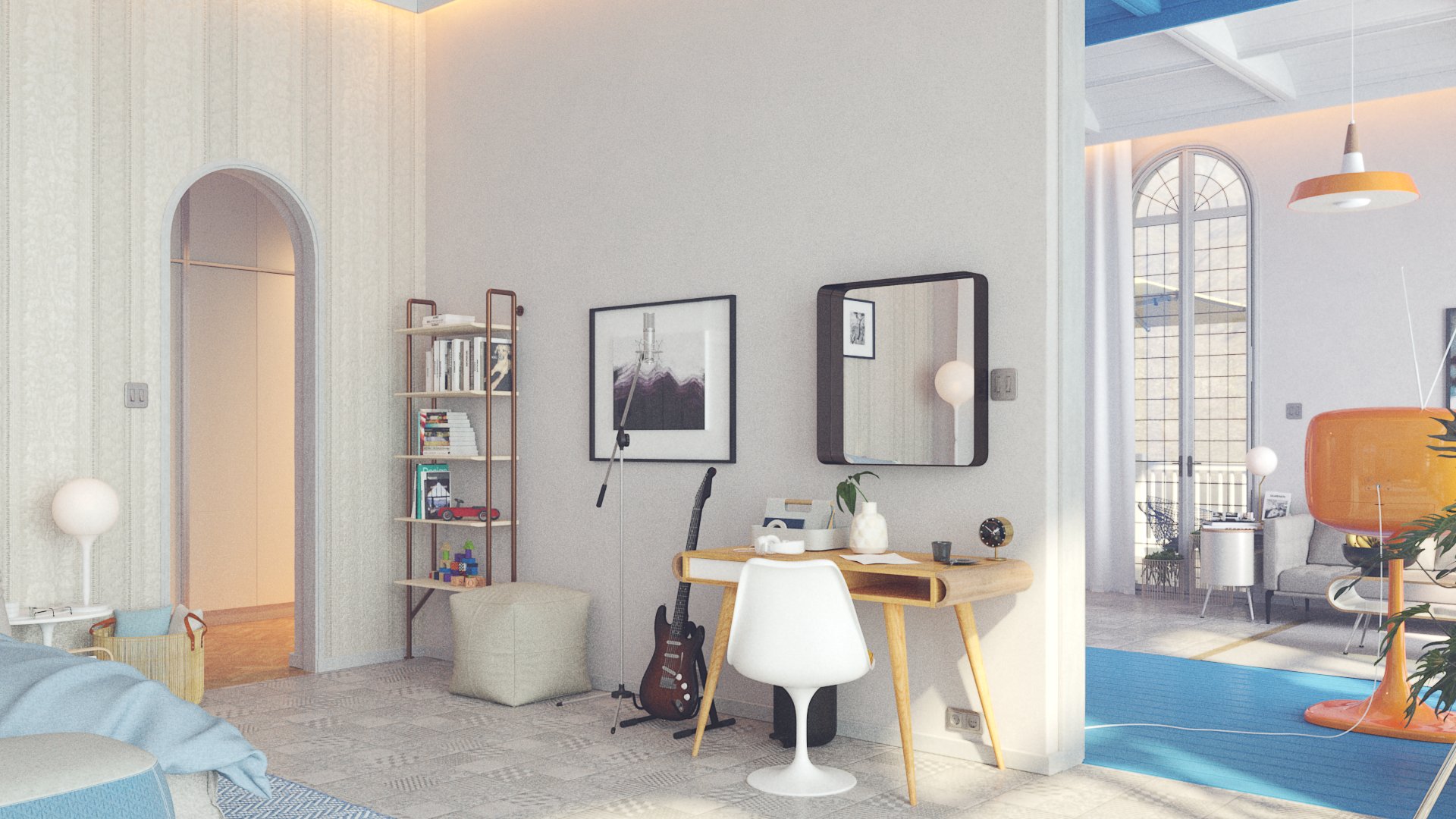
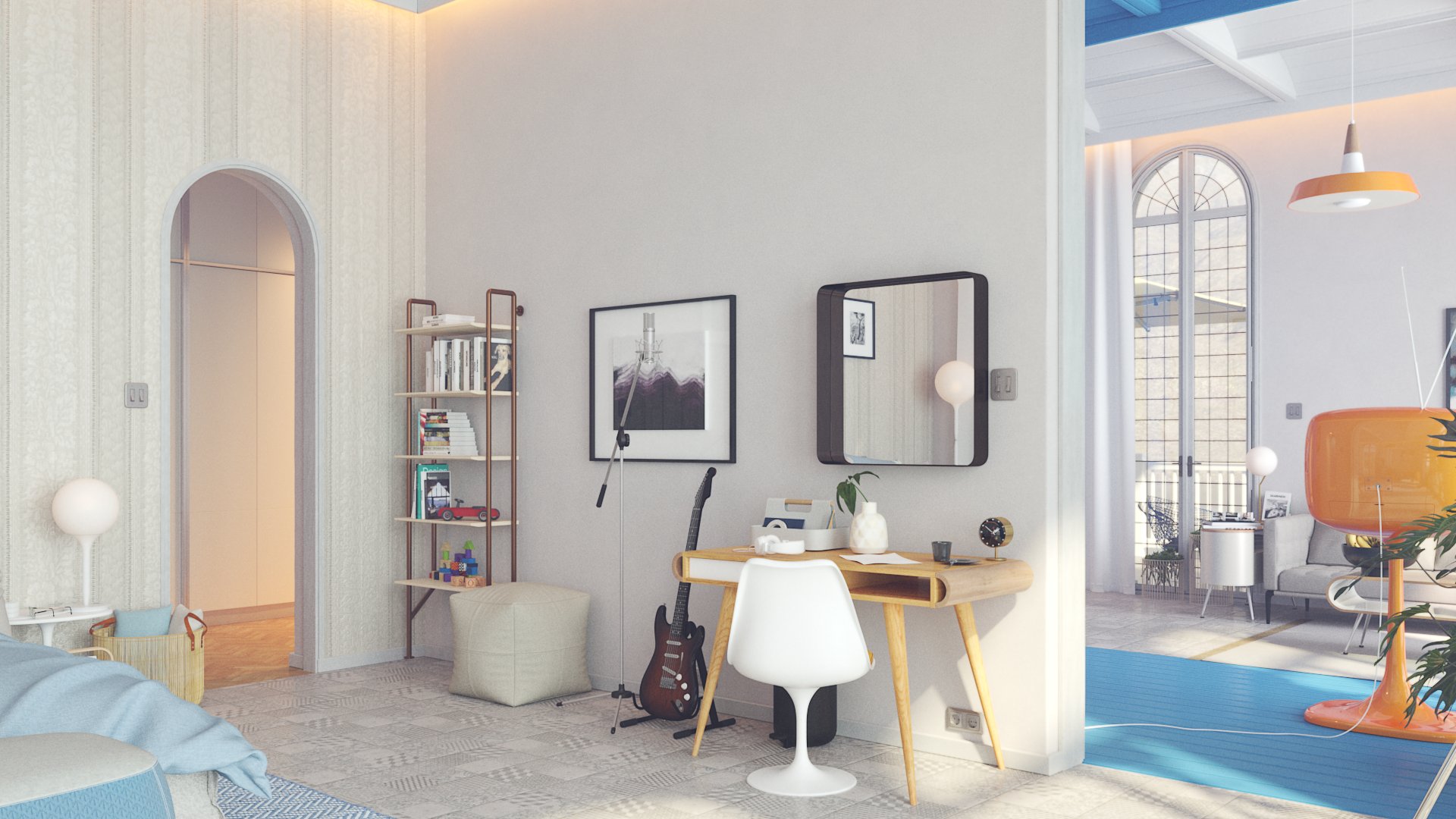
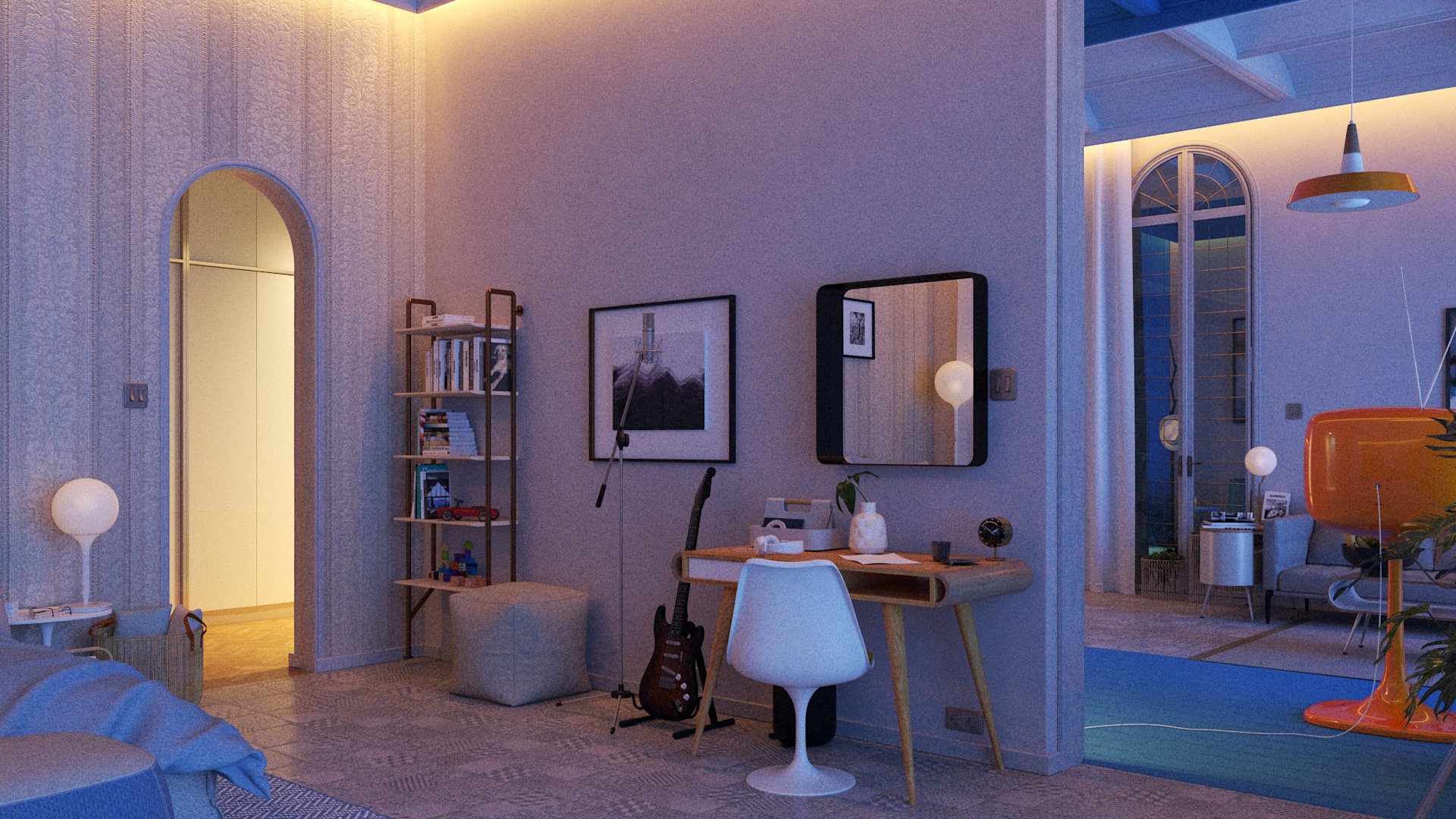
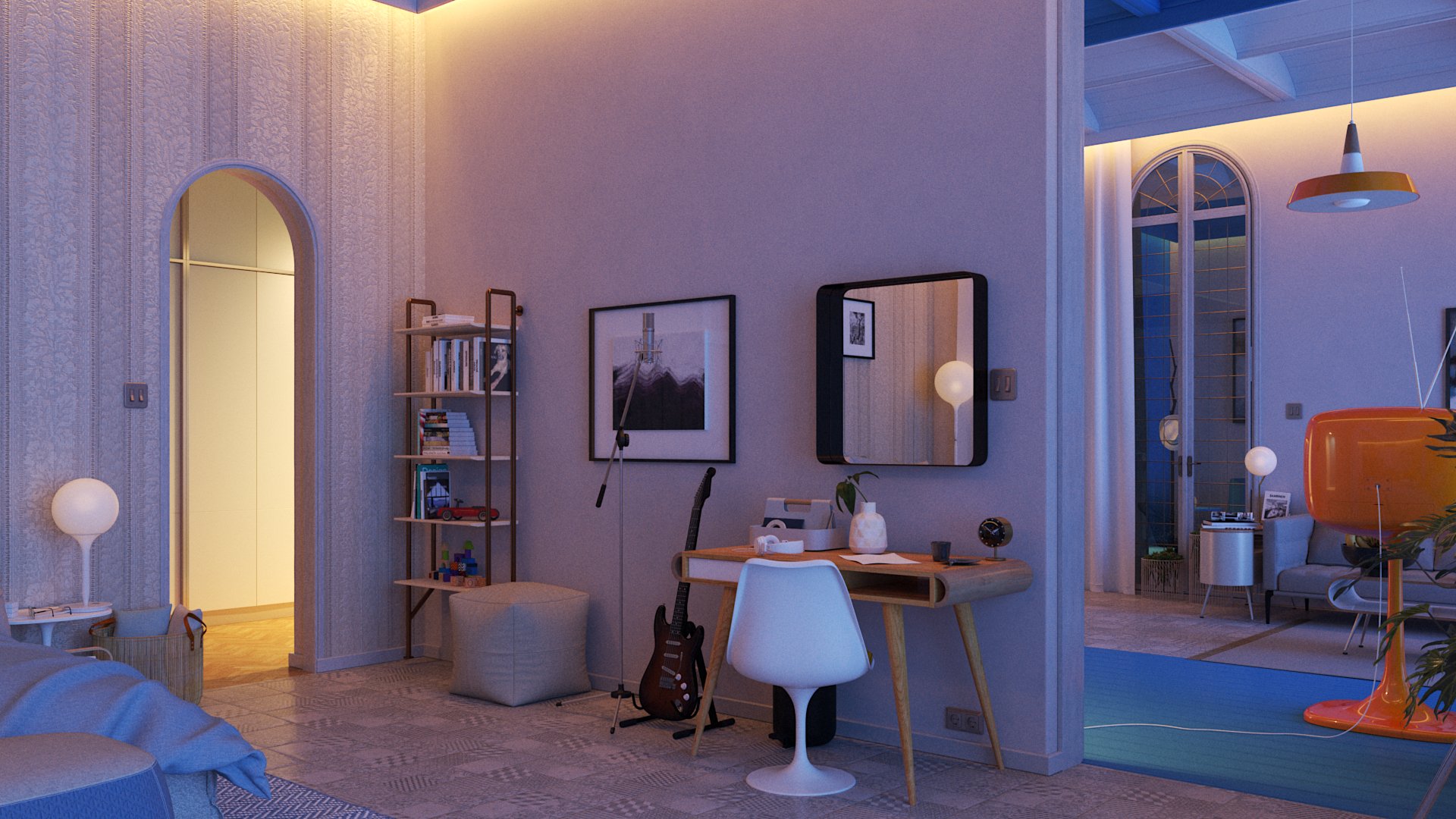
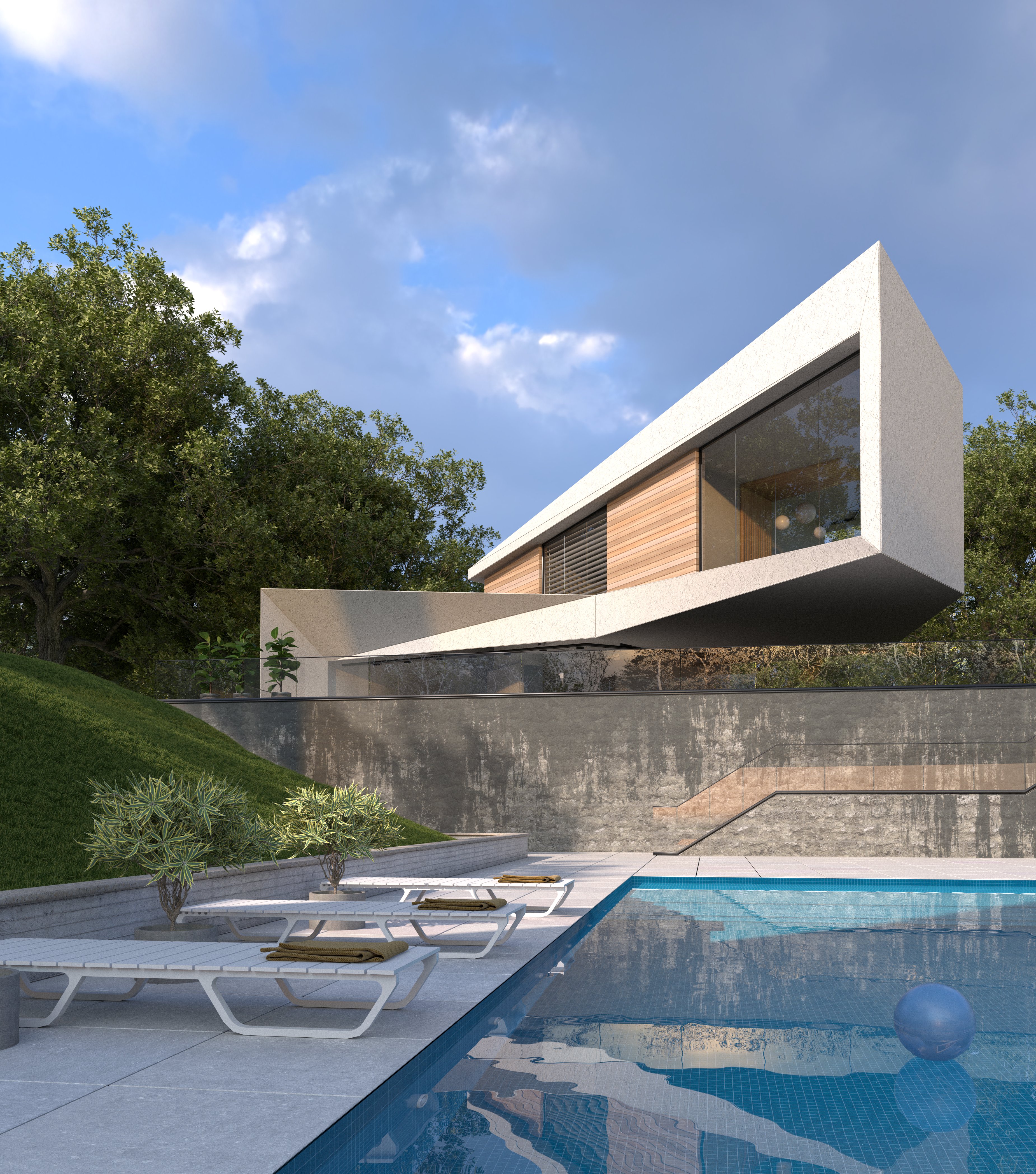
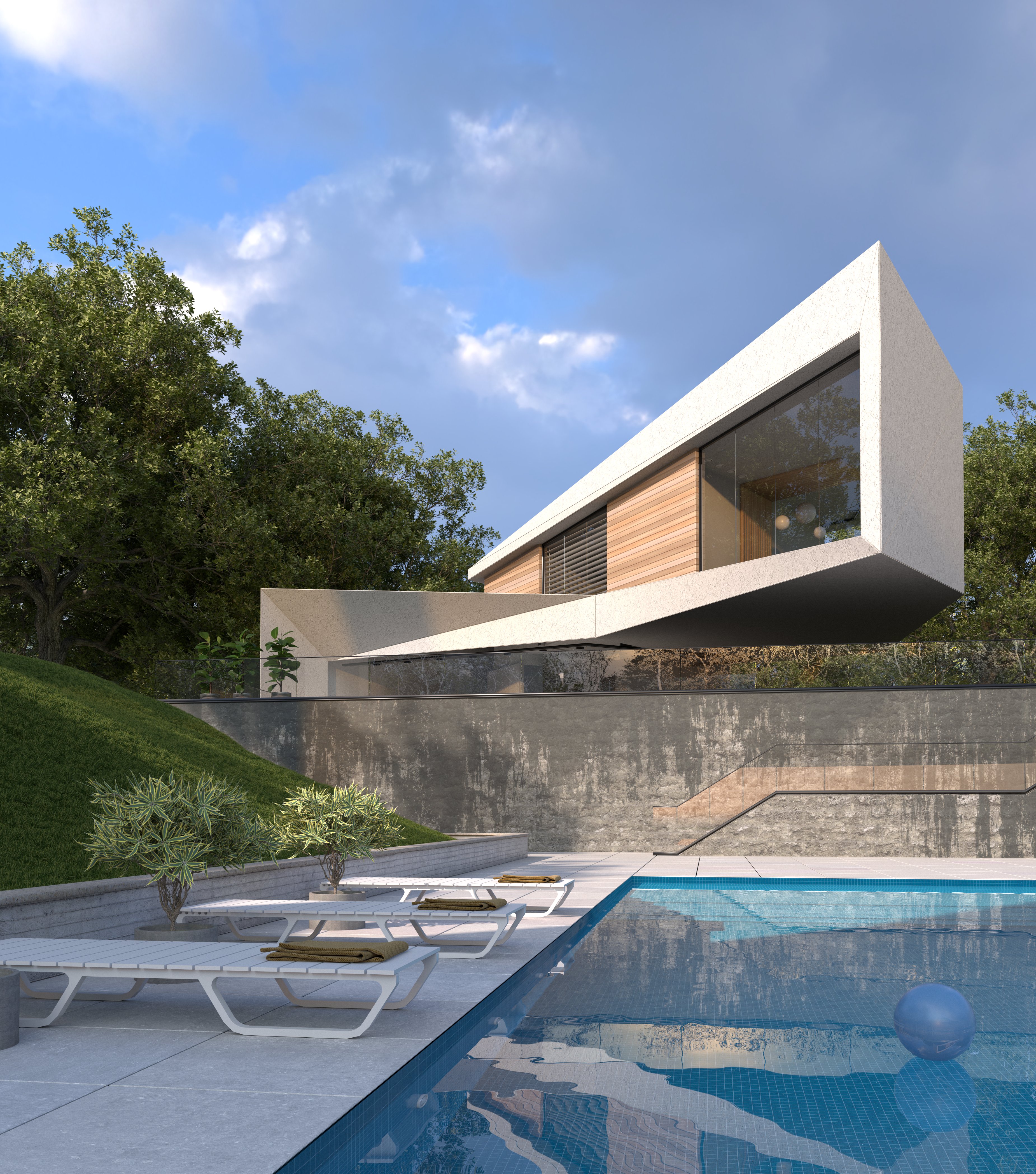
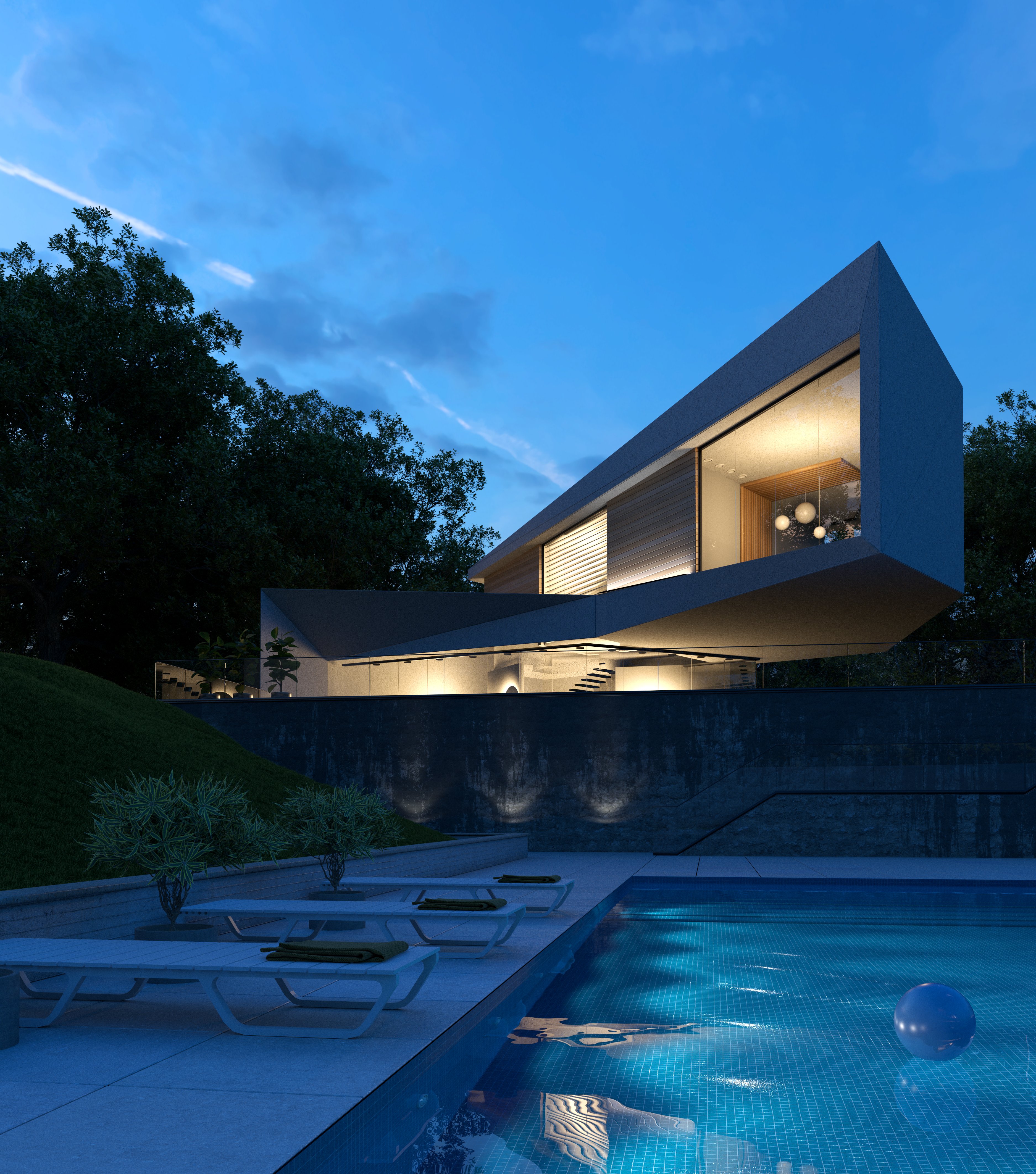
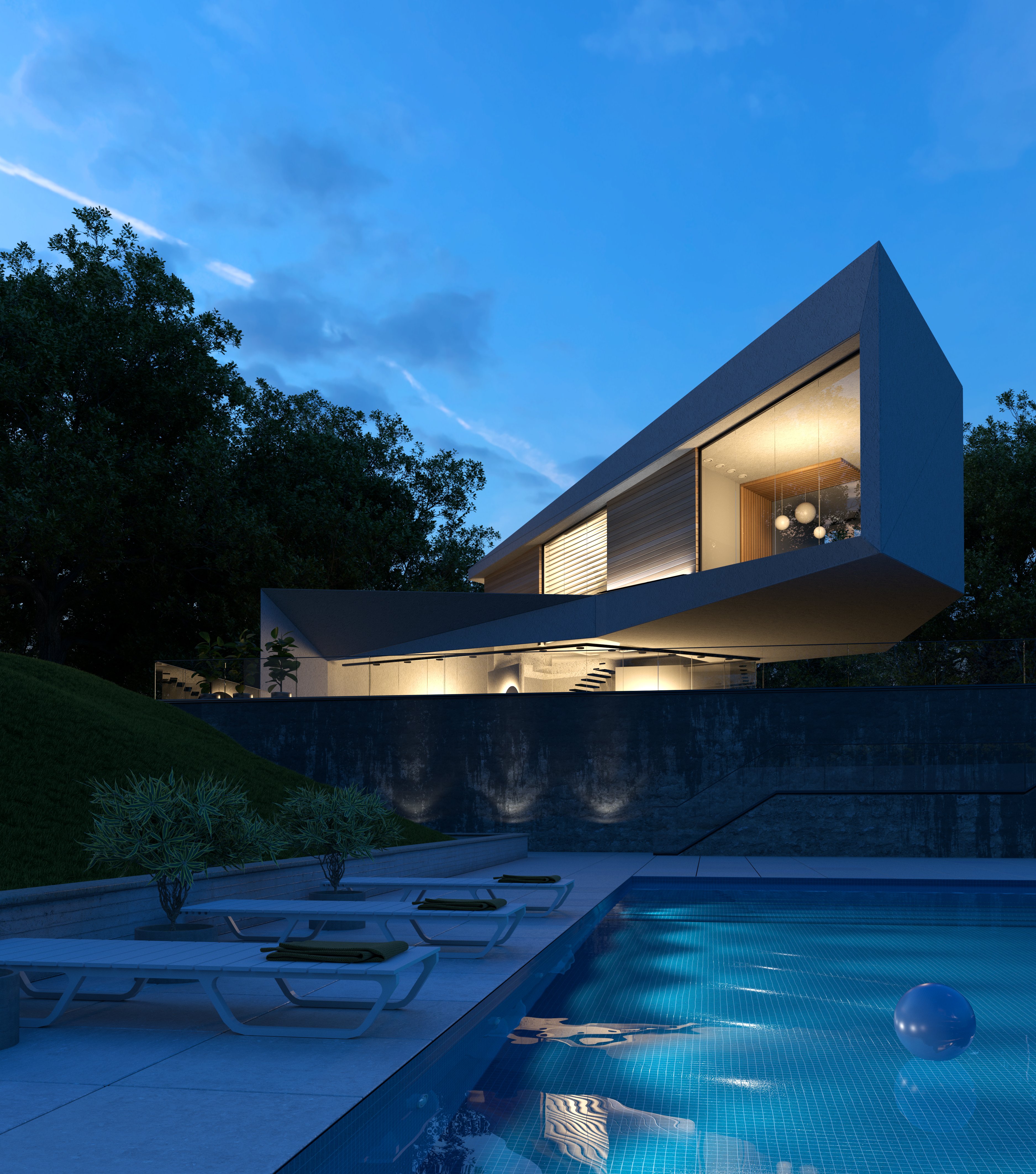
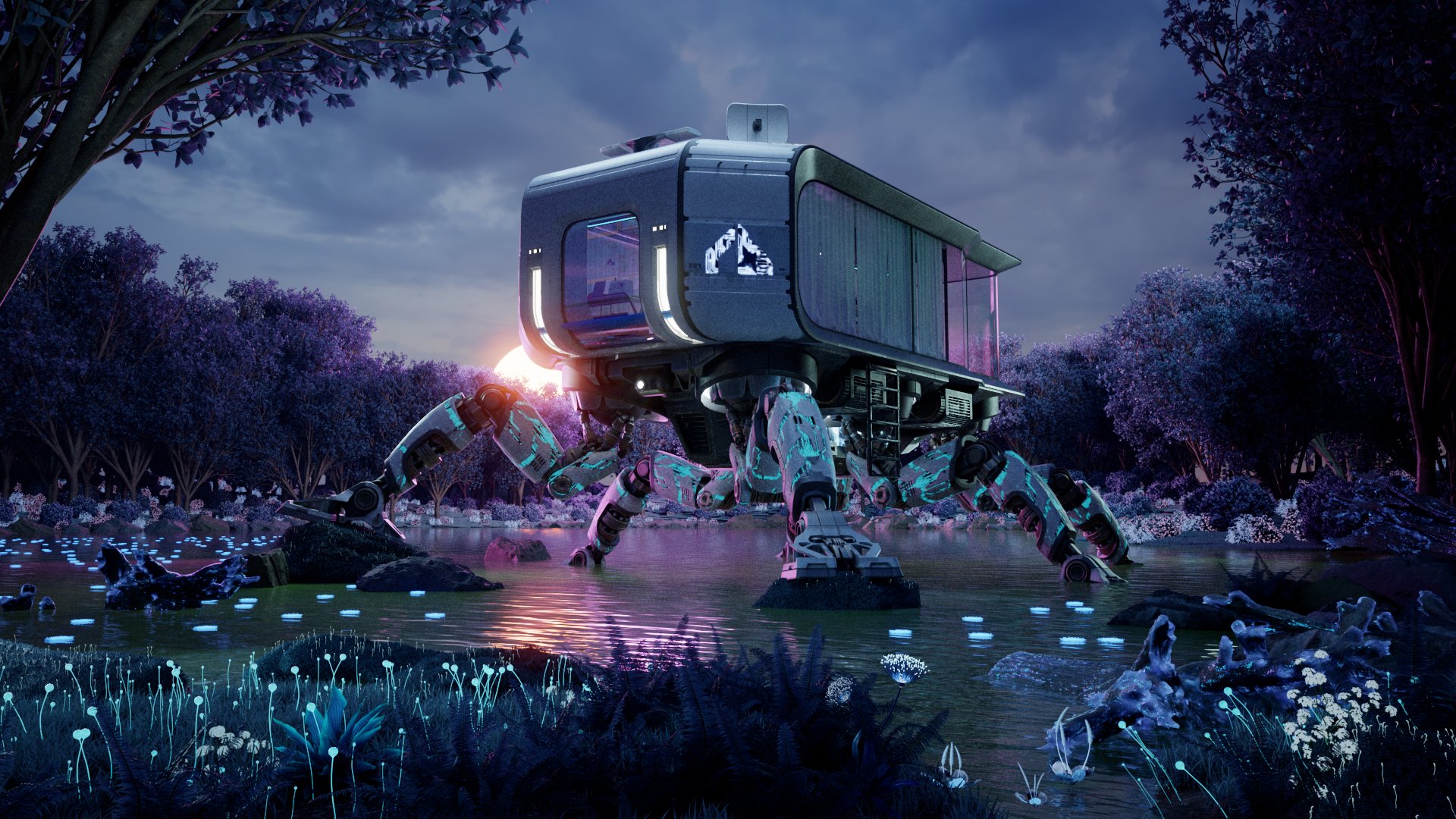
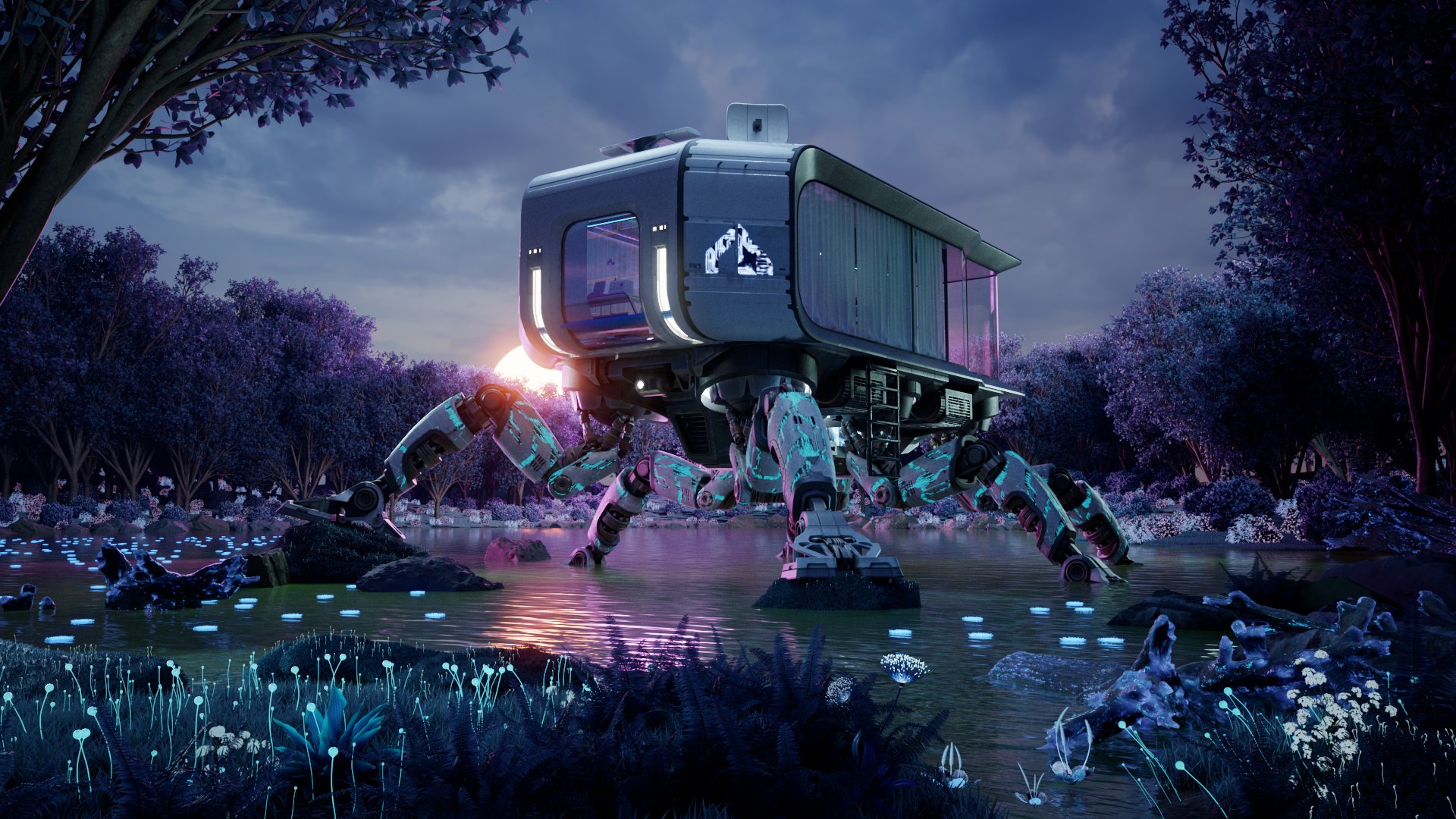
Mobile house
LQ settings: 5m53s / 27 credits
Download image >
Download scene with LQ settings >
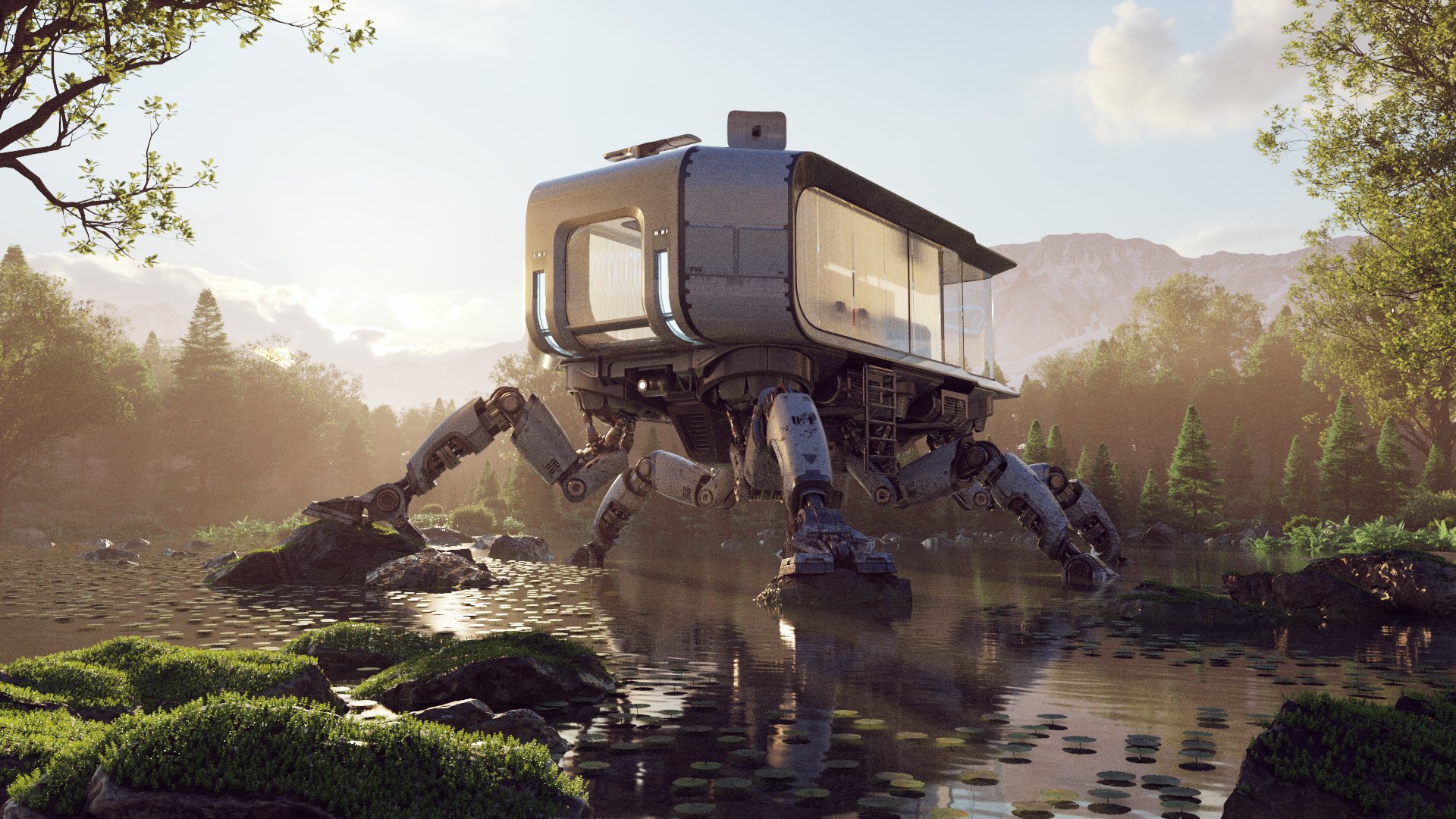
HQ settings: 24m35s / 111 credits

Not sure how many credits you need for your next project? We've compiled a list of our samples scenes so that you see an estimate of the render time and cloud credit cost for each. Here's how you can use them.
You can also see this guide for more details on rendering animations.
LQ settings:
Noise threshold : 0.04
Max subdivs : 20
Shading rate : 6
HQ settings:
Noise threshold : 0.01
Max subdivs : 64
Shading rate : 6
LQ settings:
Noise threshold : 0.04
3ds Max/Maya Samples limit : 500
Rhino/SketchUp Max subdivs : 32
HQ settings:
Noise threshold : 0.01
3ds Max/Maya Samples limit : 1000
Rhino/SketchUp Max subdivs : 64
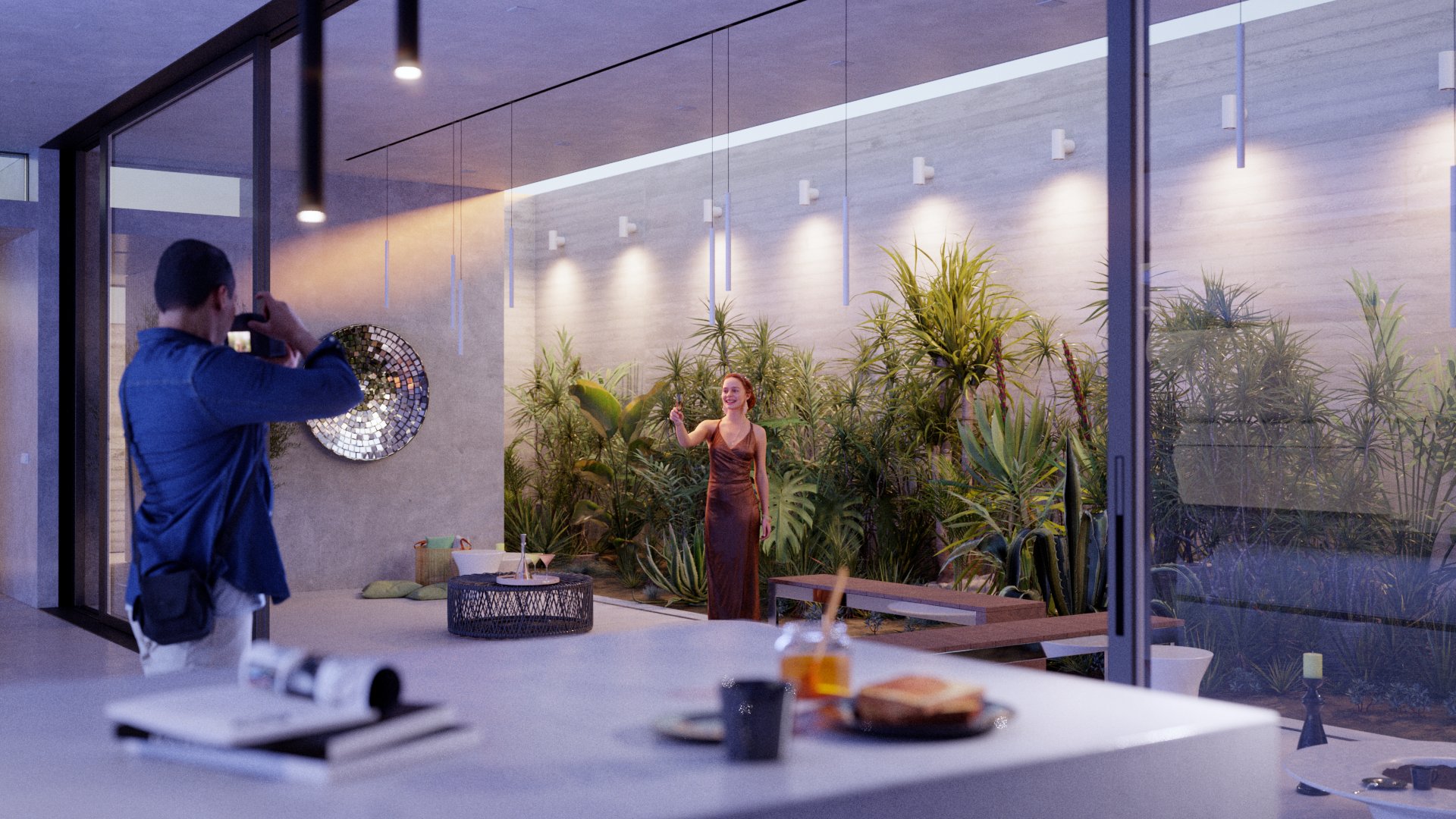
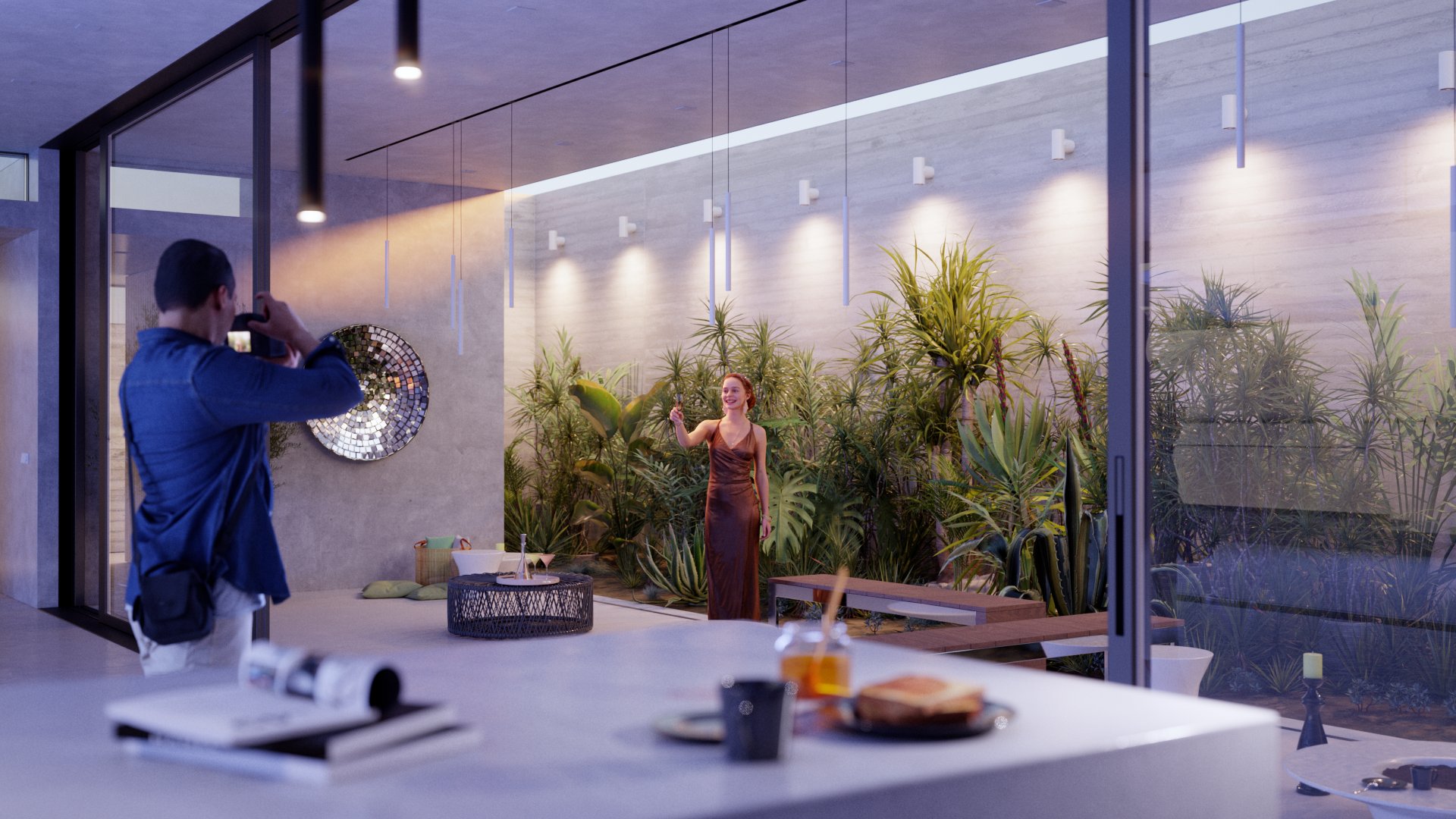
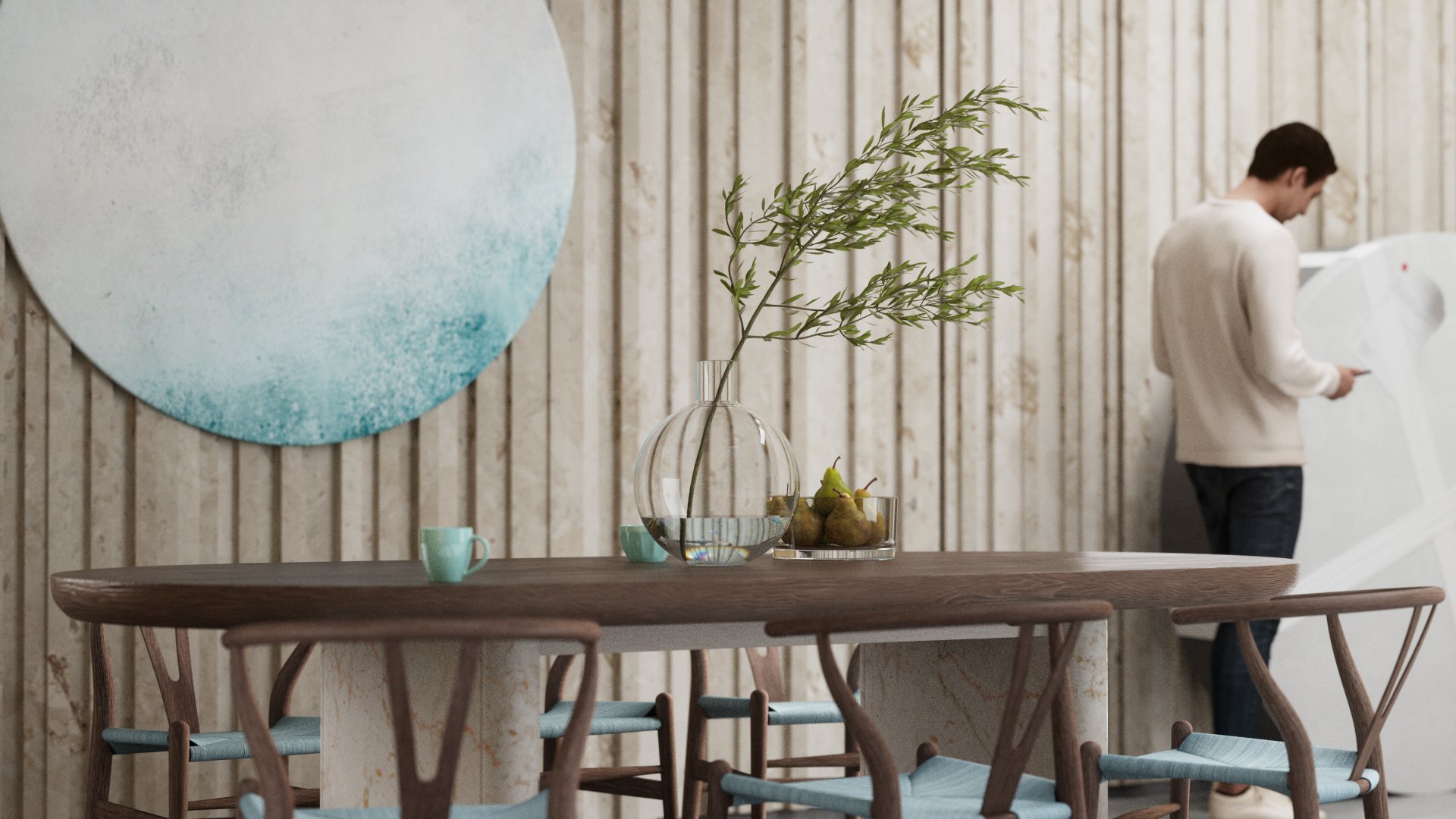
LQ settings: 5m53s / 27 credits
Download image >
Download scene with LQ settings >
HQ settings: 24m35s / 111 credits
.avif)
LQ settings: 20m29s / 93 credits
Download image >
Download scene with LQ settings >
HQ settings: 67m18s / 295 credits

LQ settings: 7m21s / 34 credits
Download image >
Download scene with LQ settings >
HQ settings: 31m11s / 141 credits

LQ settings: 2m50s / 13 credits
Download image >
Download scene with LQ settings >
HQ settings: 9m41s / 44 credits

LQ settings: 0m35s / 3 credits
Download image >
Download scene with LQ settings >
HQ settings: 0m39s / 3 credits

LQ settings: 3m6s / 14 credits
Download image >
Download scene with LQ settings >
HQ settings: 9m56s / 45 credits
LQ settings: 2m30s / 15 credits
Download image >
Download scene with LQ settings >
HQ settings: 4m45s / 28 credits

LQ settings: 1m53s / 9 credits
Download image >
Download scene with LQ settings >
HQ settings: 5m25s / 25 credits

LQ settings: 57s / 5 credits
Download image >
Download scene with LQ settings >
HQ settings: 1m44s / 8 credits

LQ settings: 1m20s / 6 credits
Download image >
Download scene with LQ settings >
HQ settings: 3m52s / 18 credits

LQ settings: 2m8s / 13 credits
Download image >
Download scene with LQ settings >
HQ settings: 3m31s / 21 credits

LQ settings: 3m48s / 18 credits
Download image >
Download scene with LQ settings >
HQ settings: 12m7s / 55 credits

LQ settings: 8m35s / 39 credits
Download image >
Download scene with LQ settings >
HQ settings: 33m41s / 142 credits

LQ settings: 1m36s / 8 credits
Download image >
Download scene with LQ settings >
HQ settings: 3m15s / 15 credits

LQ settings: 5m49s / 26 credits
Download image >
Download scene with LQ settings >
HQ settings: 15m10s / 69 credits
LQ settings: 3m26s / 20 credits
Download image >
Download scene with LQ settings >
HQ settings: 8m7s / 47 credits

LQ settings: 3m5s / 14 credits
Download image >
Download scene with LQ settings >
HQ settings: 9m27s / 43 credits

LQ settings: 6m58s / 32 credits
Download image >
Download scene with LQ settings >
HQ settings: 24m54s / 113 credits

LQ settings: 2m7s / 10 credits
Download image >
Download scene with LQ settings >
HQ settings: 3m55s / 18 credits
.avif)
LQ settings: 16m13s / 73 credits
Download image >
Download scene with LQ settings >
HQ settings: 60m21s / 272 credits
.avif)
LQ settings: 14m51s / 67 credits
Download image >
Download scene with LQ settings >
HQ settings: 69m49s / 306 credits

LQ settings: 1m26s / 7 credits
Download image >
Download scene with LQ settings >
HQ settings: 5m16s / 24 credits

LQ settings: 1m42s / 8 credits
Download image >
Download scene with LQ settings >
HQ settings: 6m47s / 31 credits
LQ settings: 2m57s / 17 credits
Download image >
Download scene with LQ settings >
HQ settings: 5m55s / 35 credits

LQ settings: 12m20s / 56 credits
Download image >
Download scene with LQ settings >
HQ settings: 59m6s / 257 credits

LQ settings: 4m20s / 20 credits
Download image >
Download scene with LQ settings >
HQ settings: 14m40s / 66 credits

LQ settings: 12m40s / 57 credits
Download image >
Download scene with LQ settings >
HQ settings: 52m39s / 237 credits

LQ settings: 2m23s / 14 credits
Download image >
Download scene with LQ settings >
HQ settings: 3m34s / 21 credits

LQ settings: 2m56s / 17 credits
Download image >
Download scene with LQ settings >
HQ settings: 4m36s / 27 credits